Projets, services et construction
Projets de service, dossiers et ordres de travail, rapport Projet 360 et comptabilité de la construction.
Sujets dans cette section
- Service Projects
- Service Operations
- Project 360 Report
- Construction Accounting
4 guides • 0 tutoriels vidéo disponible pour ce sujet. Parcourez le centre d'assistance ou utilisez la recherche ci-dessus.
Guides (4)
Projets de service Screenshot
Service projects let you group the work you do for a customer — the billable services, their costs, and the revenue — under one project so you can track and report on it.
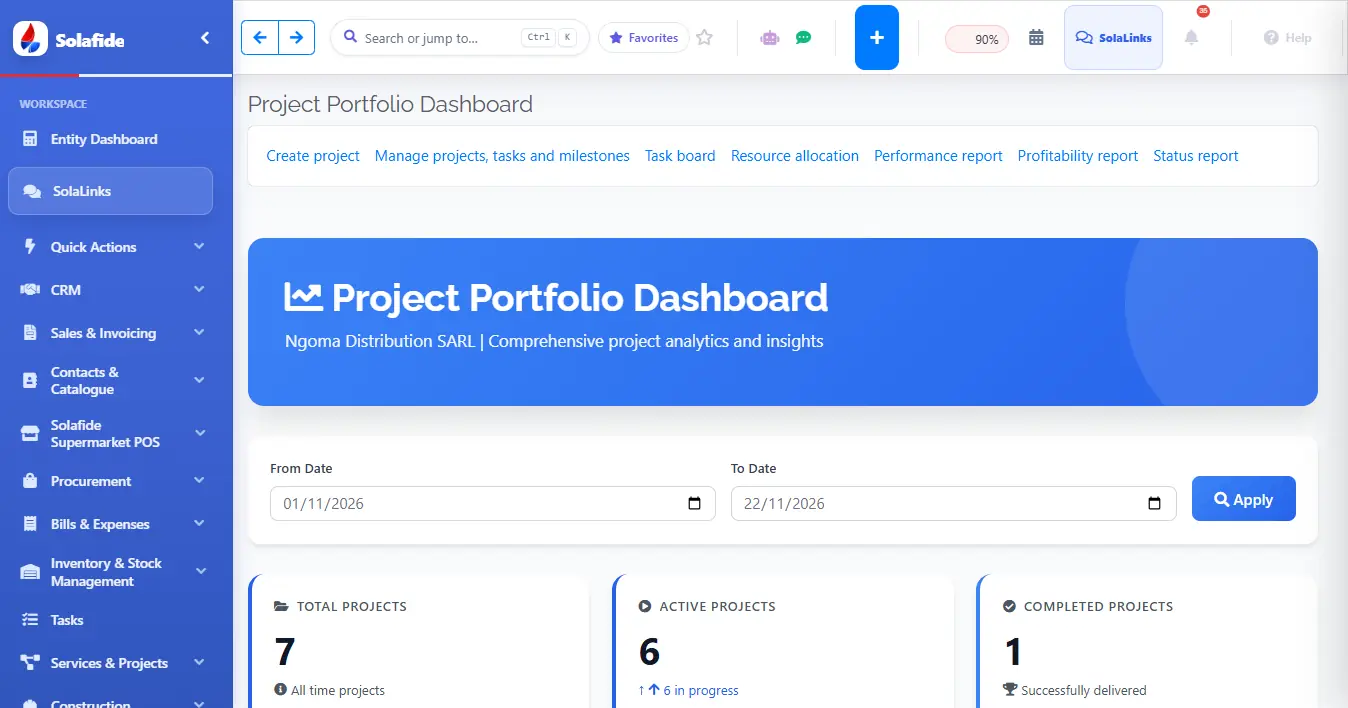
Create a project
- Go to the Service / Projects module and choose New project.
- Give the project a name and select the customer it is for and its primary service.
- Save. The project is now ready to carry invoices, costs and reports.
Add a customer or service without leaving the form
If the customer or the primary service you need isn't in the dropdown yet, you don't have to abandon the project form:
- Use the + (add new) control next to the dropdown to create the missing customer or service inline.
- It is created and immediately selected in the dropdown, and you continue filling in the project — nothing you already typed is lost.
Organize the project — Tasks, Milestones, Phases and Team
Open a project and use the tabs at the top of the project page (Overview, Tasks, Milestones, Phases, Team) to plan and track the work itself, not just the billing.
Tasks
- Open the Tasks tab and use Add Task to add a row for each piece of work. Give it a name, optionally assign it to a phase and a team member, and set its status, priority and due date.
- Click Save Tasks to save every row on the tab at once. To remove a task, use the trash icon on its row, then save.
- You do not need to type a task number — one is assigned automatically.
- A project can only be marked Complete once every task on it is done, so create at least one task for any project you intend to track through to completion.
- The Tasks board (Service Management → Tasks, or the firm Tasks menu) lists every task across projects: assign, start, send to review, complete, and print a task sheet. See the Practice Tasks help page.
Milestones
- Open the Milestones tab to record key deliverables and their target date. Tick Billing on a milestone that should trigger an invoice once it's reached — this flags the milestone for your finance team, who raise the invoice from the project as usual.
- Mark a milestone Achieved once it's reached, or Missed if the date has passed without it being delivered.
Phases
- Open the Phases tab and choose Add Phase to break the project into stages, each with its own budget and status. Phase numbers are assigned automatically in the order you create them.
- Assigning a task to a phase (from the Tasks tab) groups that task's cost and progress under the phase.
Team
- Open the Team tab to see who is assigned to the project. Choose Edit Team to add or remove team members — search by name in the Team Members field on the project's edit page.
Track progress
- The project list shows a progress bar under any project that has tasks, based on how many of its tasks are completed.
- The Overview tab keeps the budget, invoiced, outstanding and profit figures you already track today.
Link an invoice to a project
When you create an invoice for a customer you're running a project for, an optional Project field appears on the invoice form (right next to the customer field).
- Search and select the project — the invoice's customer fills in automatically from the project, so you don't have to set it twice.
- Leaving it blank creates a normal invoice, not linked to any project. Nothing about invoicing changes if you don't use projects at all.
- The field only appears once your entity has Projects available, so entities that don't use projects see the invoice form exactly as before.
Every invoice you link this way counts toward that project's revenue in the Project 360 Report below — no separate step needed.
Next steps
- Bill the project by raising invoices against it and linking them as above.
- Track how the project is doing with the Project 360 Report (see its own guide), which brings revenue, costs, profit, billing and activity together for a single project.
Opérations de service — dossiers, équipements et ordres de travail Screenshot
Service Operations is your day-to-day workspace for customer support requests and the field work that follows: log a customer's problem as a case, turn it into a work order, schedule a technician, and record the time, parts and customer sign-off — all in one place, tied back to the customer's contract and equipment.
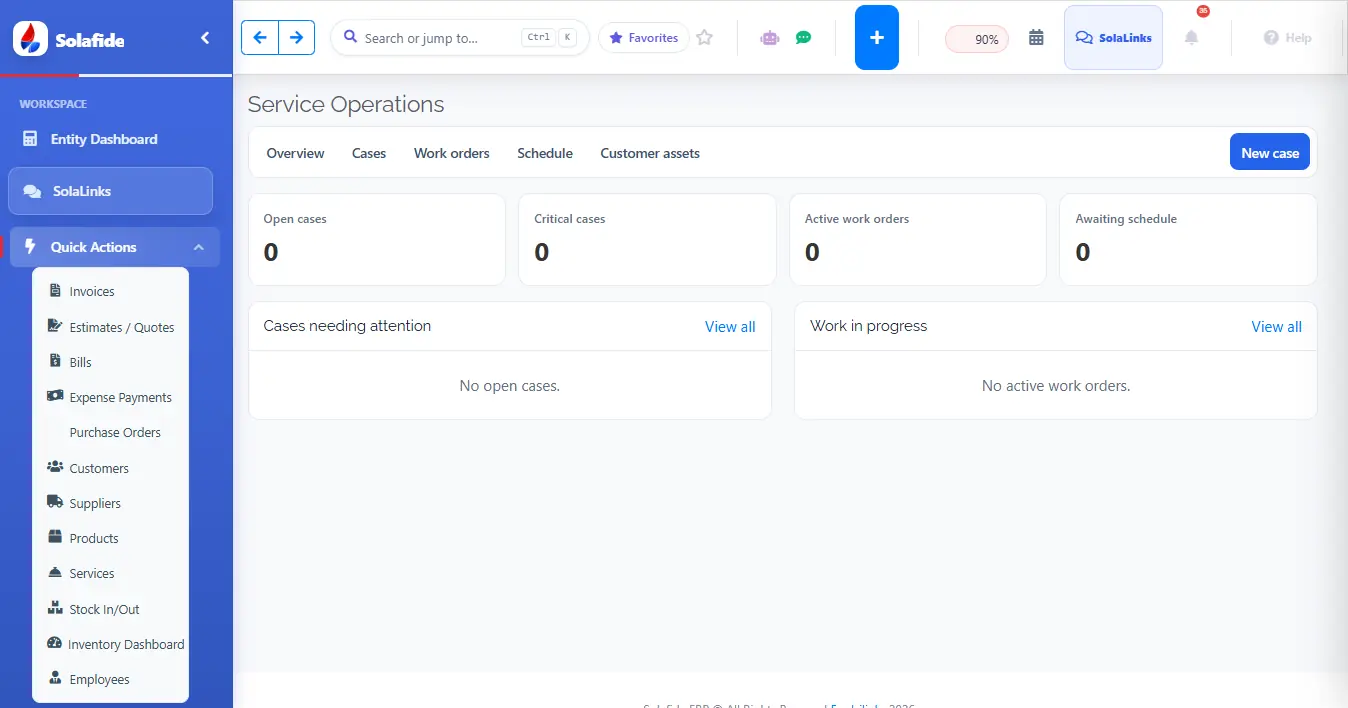
The Operations dashboard
Go to Service / Operations to see, at a glance:
- Open cases and Critical cases waiting on your team.
- Active work orders currently being scheduled or worked.
- Awaiting schedule — work orders that still need a technician appointment.
- Cases needing attention and Work in progress — shortcuts straight to the records that need a decision, with a link to view the full list of each.
Customer assets (installed equipment)
Before logging a case for a piece of equipment you service, register it under Service / Assets:
- Record the serial number, model, the customer it belongs to, and its warranty start/end dates.
- Each asset keeps its own history of the cases and work orders raised against it, so you can see a full service record before a technician is dispatched.
- The serial number must be unique per customer — Solafide blocks a duplicate entry so the same unit is never registered twice.
Cases — logging a customer request
Open Service / Cases and choose New case to log a customer request:
- Select the customer (and the asset the request relates to, if any).
- Give it a subject, a description, and a priority (Low, Normal, High or Critical).
- Save. Solafide sets response due and resolution due timestamps and the case starts at status New.
Moving a case forward
On a case's detail page, use Next action to move it through its lifecycle: New → Triaged → In progress → Waiting for customer → Resolved → Closed, or Cancelled at any point before it closes. Resolving or cancelling a case asks for a short resolution summary or cancellation reason, which is kept on the case for the record.
Every status change is written to the case's Activity history timeline, so you always have an audit trail of who changed what and when.
From case to work order
Once a case needs a technician on site, choose Create work order on the case detail page. This starts a new work order already linked back to the case, its customer and its asset, so nothing has to be re-entered.
Work orders — scheduling and executing the job
Open Service / Work Orders to see every job in flight, or New work order to start one directly (optionally linking a case, customer, asset, contract, project or service).
A work order moves through: Draft → Ready for scheduling → Scheduled → Dispatched → In progress → Paused → Completed → Accepted, or Cancelled. Completing a work order asks for completion notes; once completed, record the customer acceptance name to close the loop with a sign-off.
On a work order's detail page, three sections capture everything a technician does on the job — open each one to add a new entry:
- Appointments — schedule a technician with a start and end time. Solafide will not let you double-book the same technician over an overlapping time slot.
- Time and labor — log the technician, how long the work took, and whether it's billable.
- Parts and materials — record the item and quantity used from your inventory, with its unit cost, ready to be included in the job's cost.
The Audit timeline at the bottom of the page lists every status change and recorded activity on the work order, in order, so a manager or the customer can see exactly how the job progressed.
The appointment lifecycle
Once an appointment is scheduled, it moves through its own status as the technician's visit unfolds: Tentative → Confirmed → En route → Arrived → Completed, or Cancelled / No show at the appropriate point. Use the buttons next to each appointment on the work order page to move it forward — Solafide records the actual arrival and departure time automatically the first time an appointment reaches Arrived or Completed.
Dispatch Schedule — the technician calendar
Go to Service / Schedule to see every technician appointment for the week at a glance, grouped by day:
- Use Previous week / Next week to move through the calendar, or filter to a single technician to see just their day.
- The Awaiting schedule panel at the top lists work orders that are ready but still have no technician appointment — open one to schedule it.
- Move an appointment through its lifecycle directly from the schedule board with the same Confirmed / En route / Arrived / Completed / Cancelled / No show buttons found on the work order page — no need to open each job individually.
Who sees what
Every case, asset, work order, appointment, work log and part usage is scoped to your entity — a case or asset raised in one company/entity in Solafide is never visible from another, even to the same logged-in user.
Next steps
- Keep contracts and their SLA targets up to date under Service / Contracts, so response and resolution deadlines on new cases reflect what was promised to the customer.
- Use the Service Projects Guide if the work you're logging belongs to a longer, billable project rather than a single support case.
Rapport Projet 360
The Project 360 report brings everything about a single project onto one page, so you can see at a glance whether it is profitable and properly billed.
What it shows
For the project you select, the report pulls together:
- Revenue — what you have earned on the project.
- Costs — what the project has cost.
- Profit — revenue minus costs.
- Billing — what has been invoiced versus what is still to bill.
- Phases — the breakdown across the project's phases.
- Construction activity — for construction projects, the activity recorded against the project.
- Data-quality checks — flags that highlight anything that looks inconsistent and may need review before you rely on the figures.
Open the report
- Go to the Service / Projects module (or the project's page).
- Open Project 360 and choose the project you want.
- Review the sections above for that project.
Export
Use the export option on the report to download it (for example to PDF/Excel) for management review, sharing with the client, or filing.
The figures come from your posted accounting data. If a data-quality check flags an issue, resolve it in the underlying records so the report reads true.
Comptabilité de la construction Screenshot
Version 1.0 | July 2026 | Prepared for client use
This manual explains how to operate the Construction module and how its records connect to Accounting and Finance. Button names and workflow states follow the current Solafide application. Features visible to a user depend on the entity's active modules, subscription, and assigned role.
1. Purpose of this manual
Use this manual to:
- set up and control a construction project from tender to close-out;
- prepare phases, cost estimates, material plans, and site records;
- control materials received, issued, transferred, damaged, or signed out;
- process change orders, progress billings, site purchases, and client payments;
- understand the accounting entry created by each financial action;
- reconcile construction dashboards with the General Ledger and project reports; and
- train Project Managers, Quantity Surveyors, Site Engineers, Storekeepers, Accountants, and Finance Managers.
Important control: Planning records such as cost estimates, phase budgets, and material plans do not create accounting entries. Accounting starts when a financial document is approved and posted, such as a site purchase, vendor bill, service invoice, or payment.
2. Roles and responsibilities
| Role | Main responsibility in this workflow |
|---|---|
| Entity Administrator / Assistant Administrator | Activates modules, configures users, accounts, services, bank accounts, and project access. |
| Project Manager / Manager | Owns project delivery, phases, timeline, changes, reports, and approvals. |
Quantity Surveyor / Cost Controller (qs_cost) |
Maintains the cost estimate, contract forecast, change orders, billing quantities, and cost checks. |
| Site Engineer | Records site progress, documents, safety issues, material use, and site purchases. |
| Site Technician | Records material consumption, movements, transfers, and purchases allowed by role. |
| Inventory / Stock Manager | Controls receipts, issues, custody, stock movements, and material sign-outs. |
| Accountant | Approves and posts site purchases, invoices progress billings, receives payments, and reconciles the ledger. |
| Finance Manager | Reviews cash, receivables, retention, advances, withholding tax, profitability, and funding gaps. |
The Construction Dashboard is normally available to administrators, accountants, and quantity surveyors. Individual registers may also be available to managers, site engineers, technicians, and stock roles.
3. Before the first project
Complete these items before training the client:
- Activate the Construction, Projects, Accounting, Service Invoice, Bills, and Banking features required by the entity.
- Create the customer in the customer master.
- Create a service project with a project number, customer, budget, project manager, primary service, start date, and end date.
- Confirm the project has a primary service. Progress billing cannot generate a service invoice without it.
- Confirm the Chart of Accounts contains active revenue, customer receivable, VAT, expense, cash/bank, and payable accounts.
- If progress billing uses deductions, confirm active accounts beginning with
4117for retention,4191for customer advances, and4492for withholding tax credit. - Create at least one payment account or bank account linked to an active cash/bank General Ledger account.
- Create item catalog records when the client wants cost estimate, billing, site purchase, or bill lines to auto-fill descriptions and rates.
- Assign users to the correct roles and projects.
4. How the modules align
| Construction activity | Construction result | Accounting / finance result |
|---|---|---|
| Create project profile | Project becomes available in Construction | No journal entry. Project becomes the common reporting tag. |
| Enter phases and cost estimate | Establishes budget and contract forecast | No journal entry. Used as the control baseline. |
| Approve change order | Increases or decreases current contract value | No journal entry until the changed work is billed or cost is posted. |
| Plan or move materials | Updates operational quantity and value controls | No journal entry by itself. |
| Assign a posted vendor bill line to project/phase/category | Links supplier cost to the project | Standard bill posting records expense/inventory, VAT where applicable, and payable. |
| Link a bill line to a material plan | Creates a construction material receipt movement | The receipt movement is operational; the vendor bill remains the accounting source. |
| Approve and post site purchase | Locks the purchase and creates a project cost | Debit Class 6 expense by line; credit Class 5 cash/bank or Class 4 payable. |
| Certify and invoice progress billing | Creates and posts a Service Invoice | Debit customer receivable; credit service revenue and VAT. Deductions are reclassified. |
| Receive invoice payment | Reduces receivable and updates cash | Debit cash/bank; credit customer receivable. |
| Receive customer deposit | Adds project funding available for future settlement | Uses the configured bank and customer-deposit liability accounts. |
The controlling principle
The same Service Project is attached to construction records, supplier costs, site purchases, service invoices, and payment transactions. This project tag allows the dashboard and Project Profitability report to compare contract value, revenue, actual cost, cash collected, and outstanding exposure.
5. Practical example used throughout
The manual uses this example:
| Field | Example value |
|---|---|
| Project | CT-2026-014 - Riverside Office Block |
| Client | Horizon Holdings Ltd |
| Contract type | Fixed price |
| Original cost estimate / contract baseline | XAF 100,000,000 |
| Approved change order | XAF 5,000,000 |
| Current contract value | XAF 105,000,000 |
| Project budget cap | XAF 90,000,000 |
| Advance payment | XAF 20,000,000 |
| Retention | 10% |
| Planned start | 1 July 2026 |
| Planned handover | 31 March 2027 |
| First billing gross work and materials | XAF 30,000,000 |
| VAT example | 19.25% |
| Withholding example | 2.20% |
The rates in this example are training values. The client must use its contract terms and current tax rules.
6. Open and understand the Construction Dashboard
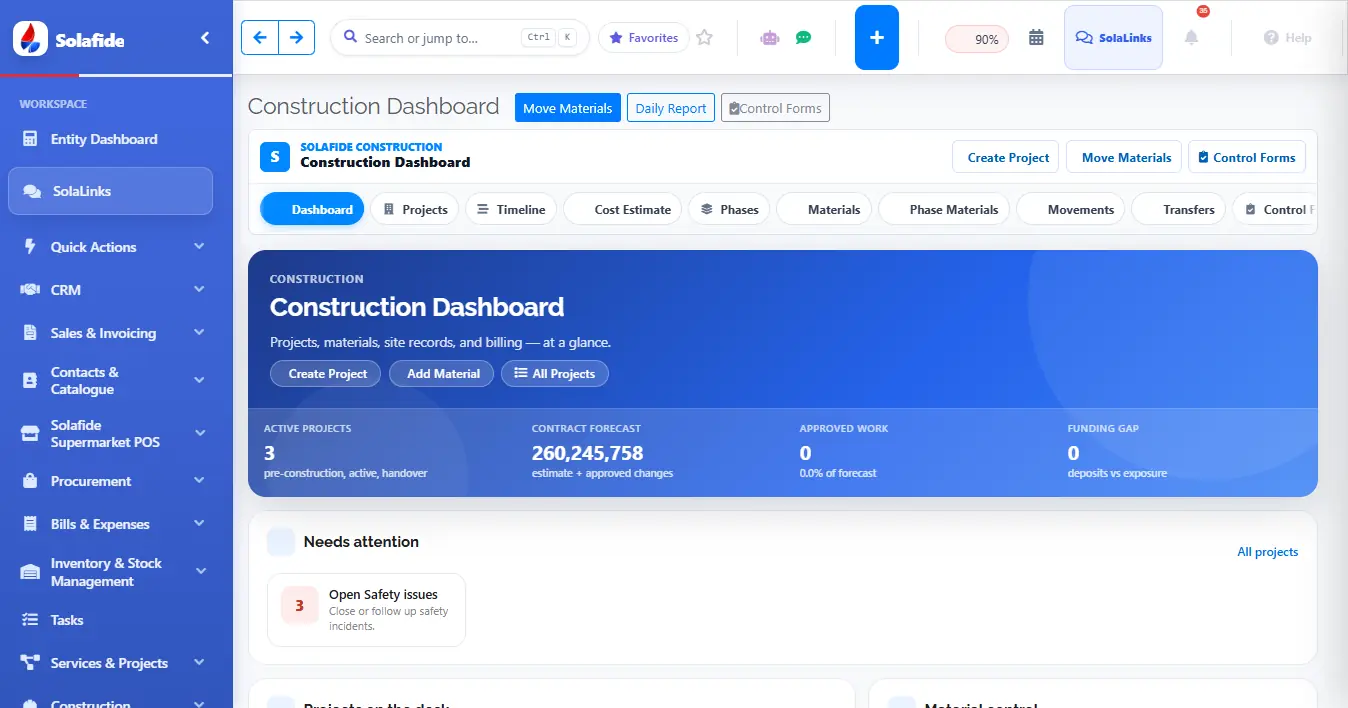
Open the entity, then select Construction. The first screen is the Construction Dashboard.
What the dashboard shows
- Active Projects: projects in pre-construction, active, or handover.
- Contract Forecast: active cost estimate plus approved change orders.
- Approved Work: work value on progress billings that have entered the billing process.
- Funding Gap: certified net exposure not covered by paid invoices and available customer deposits.
- Needs attention: low materials, open safety incidents, overdue project documents, funding gaps, or first-project setup.
- Projects on the desk: project, client, status, and budget.
- Material control: low-stock plans and remaining quantities.
- Site activity: latest daily site reports.
- Documents and changes: latest site questions, approvals, changes, and safety activity.
Dashboard buttons
| Button | Result |
|---|---|
| Create Project | Opens the construction project profile form. |
| Add Material | Opens a material plan form. |
| Move Materials | Opens the multi-line material movement form. |
| Daily Report | Opens a daily site report. |
| Control Forms | Opens printable material sign-out, vetting, and inventory forms. |
| All projects / Open register | Opens the complete project list. |
| Materials | Opens the material plan register. |
| Site reports | Opens daily reports. |
| Documents | Opens the Site Questions register. |
Practical check: Before any transaction, the client should see zero or blank values rather than invented financial data. After the example project is created, it should appear under Projects on the desk.
7. Create the construction project profile
Construction can either adopt an existing Service Project or create the Service Project directly from the construction form. It still uses one shared Service Project record; it does not create a duplicate accounting project.
7.1 Use an existing Service Project
- Select Create Project.
- In Existing Project, choose
CT-2026-014 - Riverside Office Block. - Set Contract Type to
Fixed price. - Set Construction Status to
Pre-constructionunless the project is still tendering. - Enter the site address and optional latitude/longitude.
- Enter Client Contract Reference, for example
HH/ROB/2026/014. - Enter Contract Value when the agreed client price is different from the internal Cost Estimate. Leave it blank when the Cost Estimate is also the contract baseline.
- Enter Retention Percent
10.00. - Enter Advance Payment
20,000,000. - Enter planned start and handover dates.
- Select the Site Manager and enter construction notes.
- Use Add Phase and Add Material if the phases and initial material estimates should be created on the same screen.
- Select Save Project Profile. Use Cancel to leave without saving.
7.2 Create the Service Project from Construction
Use this option when the client has not yet created the project under Projects.
- Leave Existing Project blank.
- Enter Project Name.
- Select Customer and Primary Service.
- Select Project Manager, Budget, Start Date, End Date, Priority, and Project Status.
- Complete the construction fields and planning rows.
- Select Save Project Profile.
The system creates the Service Project, then attaches the Construction Project Profile to it. Progress billing cannot be invoiced unless Customer and Primary Service are present.
Planning materials entered here also create approved material Cost Estimate lines. Do not enter those same material lines again in the Cost Estimate register.
Finance rule: Contract Value is the client-agreed price. If it is blank, the dashboard derives the contract value from the approved Cost Estimate. Approved change orders adjust whichever baseline is in force.
Project planning buttons on the form
| Button | Result |
|---|---|
| Add Phase | Adds a new phase row with phase name, budget, start, and end dates. |
| Add Material | Adds a phase-and-material planning row. |
| Add Material to This Phase | Adds another material beneath the selected phase without repeating the phase header. |
| Trash icon | Removes the unsaved planning row. |
| Save Project Profile / Save Changes | Validates and saves the profile and planning rows. |
| Cancel | Returns without saving. |
The planner shows Budget Cap, Phase Budgets, Material Cost, and Remaining. Material plans cannot push a phase beyond its phase budget.
Project workflow buttons
Open Projects, select View, and use the Workflow section:
Tender -> Pre-construction -> Active -> Handover -> Closed
- Move to [next status] advances one stage.
- Put On Hold changes the project to Suspended.
- A suspended project can resume to Active or Pre-construction.
- Edit Profile changes profile details unless the project is Closed.
Practical example: Move Riverside Office Block from Pre-construction to Active only after the baseline cost estimate, phases, site manager, and start authorization are ready.
8. Set phases and timeline
8.1 Phases
Open Phases, then select Add Phase.
Enter:
- Project: Riverside Office Block
- Phase Number:
1 - Name:
Foundation - Description:
Excavation, footing, reinforcement, and concrete works - Start Date:
2026-07-01 - End Date:
2026-08-31 - Budget:
25,000,000 - Actual Cost: leave at
0initially - Status: use the appropriate phase status
Select Save. Repeat for Structure, MEP, and Finishes.
Finance rule: Phase Actual Cost is a manual operational figure. The construction financial snapshot prefers posted General Ledger project cost when posted cost exists. A difference greater than the configured tolerance creates a cost reconciliation warning.
8.2 Timeline
Open Timeline.
- Select Add Task.
- Choose the project and phase.
- Enter task number, task name, description, status, priority, estimated hours, and due date.
- Select Save.
- Select Add Milestone for a target such as
Foundation inspection approved. - Mark Is Billing Milestone when the milestone supports a contract billing trigger.
Use Search, Project, From, and To filters, then select Apply. Select Reset to clear them. Drag a task bar or milestone marker on the timeline to update its date.
Practical example: Create task FND-010 - Pour footing concrete, due 15 August 2026, and milestone Foundation certified, target 31 August 2026.
9. Build and approve the Cost Estimate
Open Cost Estimate, then select Add Cost Estimate Line or the top create button. The screen is a multi-line BOQ-style editor.
- Select the Project and optional Phase.
- Select Add Line for one row or Add 5 for five rows.
- For each line, select an Item or type a Description.
- Enter or accept a unique Cost Code.
- Select the Cost Category.
- Enter Unit, Quantity, and Unit Rate.
- Confirm the calculated Line Total and Cost Estimate Total.
- Use the trash icon to remove a row.
- Select Save Cost Estimate. Select Cancel to leave.
Example baseline:
| Cost code | Description | Category | Qty | Unit rate | Total XAF |
|---|---|---|---|---|---|
| PREP-001 | Site preparation | Labor | 1 | 10,000,000 | 10,000,000 |
| FND-001 | Foundation works | Materials | 1 | 25,000,000 | 25,000,000 |
| STR-001 | Structural frame | Materials | 1 | 40,000,000 | 40,000,000 |
| MEP-001 | Mechanical and electrical | Subcontractor | 1 | 15,000,000 | 15,000,000 |
| FIN-001 | Finishes | Materials | 1 | 10,000,000 | 10,000,000 |
| Total | 100,000,000 |
Cost Estimate workflow
- Draft: select Approve or Cancel.
- Approved: select Revise or Cancel.
- Revised: select Approve or Cancel.
Only active, non-cancelled lines contribute to the construction baseline. Approved records are locked against normal editing. Use the workflow instead of deleting history.
Accounting effect: None. The Cost Estimate controls the forecast and billing cap but does not debit or credit the General Ledger.
10. Plan and control materials
The app contains two related material controls:
- Materials is the stock-like construction material plan used by receipts, issues, damage, transfers, sign-outs, remaining quantity, and low-stock alerts.
- Phase Materials is a planning allocation assigned to a technician. It tracks estimated versus consumed quantity and supports allocation transfers. It is not inventory stock.
10.1 Materials register
Open Materials, select the create button, and enter:
- Project and optional Phase
- Inventory Item, when available
- Material Name and Cost Code
- Unit
- Planned Quantity
- Unit Rate
- Alert Threshold Quantity
- Notes
Example: Foundation Cement, unit bag, planned quantity 1,000, unit rate 6,500, alert threshold 150. Planned total is XAF 6,500,000.
Select Save or Cancel.
The register calculates:
Remaining Quantity = Planned Quantity + Receipts + Transfer-ins + Adjustments - Issues - Damage - Destruction - Transfer-outs
Select Material Request PDF or Material Request Excel to produce the grouped Forecasted Material Request by project and phase. Select Excel or PDF for the filtered register itself.
10.2 Phase Materials
Open Phase Materials, select Add Phase Material, and enter estimated quantity, consumed quantity, unit cost, low threshold percentage, and responsible technician.
Example: Allocate 1,000 bags of cement to Foundation, assign the Site Technician, and use a low threshold of 90%. When consumption reaches 900 bags, the app raises a warning.
Accounting effect: None. Phase Materials is an allocation and alert control. Supplier bills and posted site purchases create actual accounting cost.
10.3 Record material movements
Open Movements or select Move Materials.
- Select Add Line or Add 5.
- Choose Material / Stock.
- Choose the Action.
- Enter Date and Quantity.
- Confirm Unit Cost, which defaults from the material plan.
- Complete destination or custodian fields when required.
- Add Notes.
- Review Total, then select Save.
Movement actions:
| Action | Use | Required extra information |
|---|---|---|
| Receipt | Material received on site | Source can be a manual receipt or linked vendor bill line. |
| Use on phase | Material consumed by work | Quantity cannot exceed availability. |
| Damage | Material damaged | Quantity cannot exceed availability. |
| Destroy / write off | Material destroyed or written off | Quantity cannot exceed availability. |
| Transfer out | Move quantity to another project or phase | Destination Project; Destination Phase where applicable. |
| Transfer in | Created from the source transfer | Normally created automatically as the paired movement. |
| Adjustment | Correct inbound quantity | Explain the reason in Notes. |
| Custody transfer | User-to-user handoff without changing project quantity | From Custodian and To Custodian. |
Material movements are append-only. To correct a mistake, record a new adjustment or compensating movement; do not edit or delete the original record.
Practical example: Receive 600 bags of cement at XAF 6,500, then issue 200 bags to Foundation. Remaining quantity becomes 1,000 + 600 - 200 = 1,400 bags because the planned quantity is part of the control quantity in the current module.
10.4 Transfer phase allocations
Open Transfers, then select the create button.
- Select Source Material.
- Select To Project and To Phase.
- Select the receiving technician.
- Confirm destination material name, unit, quantity, unit cost, date, and notes.
- Select Record Transfer.
The app reduces the source estimate and adds or creates the destination estimate. It prevents a transfer larger than the unconsumed source balance.
Accounting effect: None. This transfers planning allocation. A stock movement uses Movements > Transfer out instead.
10.5 Material sign-out
Open Control Forms, select Sign Out Form, then Record Sign Out. Alternatively open the Material Sign-Out list and select New Sign-Out.
- Select Project, Phase, Date, Time Out, site, store, work area, and purpose.
- Select recipient user or employee and optional contractor.
- Select authorization and approval users.
- Select Add Line.
- Choose material, quantity issued, unit cost, batch/lot, condition, and issue type.
- For temporary items, enter expected return details when known.
- Select Save Draft Sign-Out.
- Open the saved sign-out and select Issue Materials.
Issue types:
- Consumption: creates a Use on phase movement and reduces availability.
- Temporary Use: creates a custody transfer; project quantity is unchanged.
- Transfer to Site: creates a Use on phase movement under the current implementation.
Select Control Form to open the printable document. Select Back to Sign-Outs to return to the register.
10.6 Material Control Forms
The Control Forms screen has three tabs:
- Sign Out Form: printable issue/custody document.
- Vetting Form: material receipt and quality-check view.
- Inventory Report: planned, received, used, remaining, bad/damaged, and low-stock figures.
Use Project/Site, Phase, From, and To, then Apply. Use Reset to clear the filters. Select Print Selected Form to print the visible form.
The primary action changes by tab:
- Sign Out Form -> Record Sign Out
- Vetting Form -> Record Receipt / Vetting
- Inventory Report -> Record Stock Movement
11. Connect supplier bills to construction
Use the Bills module for normal supplier invoices, tax, payable, and payment control.
- Create the vendor bill and its item lines.
- Approve and post the bill using Approve and Post. If approval succeeded but posting did not, use Post to Ledger.
- On the bill detail line, select the Service Project.
- Select the Project Phase.
- Select the Construction Material Plan when the bill line represents received construction material.
- Select the Project Cost Category.
- Check Billable only when the cost is recoverable from the client.
- Select the line-level Save button.
Result:
- The bill remains the financial source for supplier expense/inventory, VAT, and payable.
- The project, phase, and cost category tags place posted expense in project reports.
- The selected material plan receives a linked Receipt movement using the bill line quantity and unit cost.
- Removing a linked receipt is blocked if the quantity has already been used or transferred.
Avoid double posting: Do not enter the same supplier purchase as both a posted vendor bill and a posted Site Purchase. Choose one accounting source.
12. Daily site control and documents
12.1 Daily Site Reports
Open Site Reports, select Add Site Report, and enter Project, Phase, Report Date, Weather, Labor Count, Equipment Count, Work Performed, Delays or Blockers, Materials Delivered, and Safety Notes. Select Save.
Example: 15 August 2026; 34 workers; 2 mixers; footing concrete completed; rain delay 1.5 hours; 200 cement bags delivered; no incident.
12.2 Site Questions
Open Site Questions, select Add Site Question, and record Question Number, Subject, Question, Due Date, and optional Phase.
Workflow: Open -> Mark as Answered -> Close, or Open -> Void.
Example: RFI-004 - Confirm revised column base detail, due 18 August 2026. Enter the answer before selecting Mark as Answered.
12.3 Approvals
Open Approvals, select Add Approval, and record Approval Number, Title, Specification Section, dates, and notes.
Workflow:
Draft -> Submit -> Approved / Approved as noted / Revise and resubmit / Rejected
A Revise and resubmit record can be submitted again.
Example: SUB-007 - Reinforcement steel sample, specification section 03 20 00.
12.4 Safety
Open Safety, select Add Safety Incident, and record incident number, date, severity, location, description, immediate action, corrective action, closure flag, and closure date.
Use Close after corrective action is complete. Use Reopen if further action is required. Closed incidents are locked until reopened.
12.5 Alerts
Open Alerts to review:
- phase budget almost used or exceeded;
- material plan or phase-material allocation near/exceeding budget;
- phase deadline approaching or passed;
- material allocation near depletion or over-consumed.
Select the project link on an alert to investigate the project snapshot and registers.
13. Process a change order
Open Changes, then select Add Change Order.
- Select Project and optional Phase.
- Enter Change Order Number, Title, Description, Amount, Time Extension Days, and dates.
- Leave the record in Draft while preparing support.
- Select Save.
- On the register select Submit.
- The approver selects Approve or Reject.
Practical example: CO-001 - Additional drainage channel, XAF 5,000,000, 10 extension days. After approval:
Current Contract Value = XAF 100,000,000 + XAF 5,000,000 = XAF 105,000,000.
Accounting effect: Approval updates the contract forecast only. Revenue is recorded when the approved work is included in a certified progress billing and invoiced.
14. Create, approve, and invoice progress billing
Open Billing, then select Add Progress Billing.
14.1 Enter the billing
- Select Project and optional Phase.
- Enter Period Start and Period End.
- Select Add line for manual work lines.
- Select Add [count] from BOQ to import available Cost Estimate lines.
- For each line, select Item or Cost Estimate Line, then enter Description, Quantity, and Unit Rate.
- Enter Materials on Site.
- Enter VAT %, Retention %, Withholding %, and Advance Recovery when applicable.
- Leave Billing No. blank to generate a number such as
PB-2026-001. - Enter Approved By, Approved Date, and Notes when available.
- Review Gross Certified, VAT, Retention, Withholding, Advance Recovery, and Net Payable.
- Select Save as draft or Submit for approval. Select Cancel to leave.
Current controls:
- Billing Number is generated automatically per project, for example
PB-2026-001. - Submitted and later progress billings cannot exceed the approved billing cap. The cap is explicit Contract Value + Approved Change Orders, or approved Cost Estimate + Approved Change Orders when Contract Value is blank.
- Advance Recovery cannot exceed the recorded Advance Payment for the project.
- Net Payable cannot be negative.
- Certification stamps the approver and approval date when they were not already entered.
Example calculation:
| Component | Calculation | XAF |
|---|---|---|
| Work lines | Foundation work | 25,000,000 |
| Materials on site | Certified material | 5,000,000 |
| Gross certified | 25,000,000 + 5,000,000 | 30,000,000 |
| VAT | 30,000,000 x 19.25% | 5,775,000 |
| Retention | 30,000,000 x 10% | (3,000,000) |
| Advance recovery | Contract value for this billing | (2,000,000) |
| Withholding | 30,000,000 x 2.20% | (660,000) |
| Net payable | Gross + VAT - deductions | 30,115,000 |
14.2 Billing workflow buttons
Draft -> Submit -> Certify -> Mark as Invoiced -> Mark as Paid
- Draft also permits Void.
- Submitted permits Certify or Void.
- Mark as Invoiced is available only after certification.
- Mark as Paid is available after invoicing, but succeeds only when the linked Service Invoice is fully settled.
Submitted and later progress billings are locked against normal editing.
Open a billing record with View to review its header, line items, gross, deductions, linked Service Invoice, status, and available workflow actions before invoicing or marking paid.
14.3 What Mark as Invoiced does
When the accountant selects Mark as Invoiced, Solafide:
- verifies the project has a customer and primary service;
- creates a Service Invoice with Progress billing type;
- approves and posts the Service Invoice;
- links it to the progress billing;
- posts the invoice entry to the project; and
- reclassifies retention, advance recovery, and withholding deductions when present.
Base invoice entry for the example:
| Account | Debit XAF | Credit XAF |
|---|---|---|
| 411x Customer Receivable | 35,775,000 | |
| 706x Service Revenue | 30,000,000 | |
| 4431 Output VAT | 5,775,000 |
Settlement reclassification:
| Account | Debit XAF | Credit XAF |
|---|---|---|
| 4117 Customer Guarantee Retention | 3,000,000 | |
| 4191 Customer Advance Drawdown | 2,000,000 | |
| 4492 Withholding Tax Credit | 660,000 | |
| 411x Customer Receivable | 5,660,000 |
The net General Ledger receivable after reclassification is XAF 30,115,000, matching the certificate's Net Payable.
Settlement control: Before receiving payment on a certificate with retention, advance recovery, or withholding, the accountant must compare the Service Invoice, certificate Net Payable, and posted deduction accounts. Follow the entity's approved settlement procedure and do not select Mark as Paid until the linked invoice is fully settled in Solafide.
15. Send the invoice and receive payment
Open Service Invoices, then open the invoice created from the progress billing.
Invoice buttons used in the construction workflow
| Button | Use |
|---|---|
| Back | Return to the Service Invoice list. |
| Receive Payment / Record Payment | Open the payment window after the invoice is posted. |
| Open/print the client invoice. | |
| Excel | Export invoice details. |
| Enter recipient email and select Send Email. | |
| Draft | Return an eligible invoice to draft. Not normally used for an automatically posted construction invoice. |
| Submit / Approve / Post | Standard manual invoice workflow buttons. Construction billing performs these automatically on Mark as Invoiced. |
| Unpost / Cancel / Void | Controlled reversal actions. Use only under the client's approval policy. |
| Edit | Edit only before posting/payment when available. |
| Pay from Trust Fund | Apply an available customer deposit when enabled. |
Receive Payment window
- Select Receive Payment.
- Select Full or Partial.
- Enter Payment Amount when Partial is selected.
- Enter Date.
- Select Payment Account.
- Enter Reference, for example
BNK-ROB-00041. - Select Add notes (optional) when needed.
- Select Receive Payment. Select Cancel to close the window.
Payment entry:
| Account | Debit | Credit |
|---|---|---|
| Linked cash/bank account | Payment received | |
| Customer Receivable | Payment received |
Solafide creates a posted journal entry and receipt, updates Amount Paid and Amount Owed, and changes the Service Invoice to Partial or Paid. Return to Construction > Billing and select Mark as Paid after the linked invoice shows Paid.
16. Customer advances and deposits
When the client pays an advance before invoicing, open Customer Deposits / Trust Funds.
- Select Receive Deposit.
- Select Customer.
- Enter Amount and Transaction Date.
- Enter Purpose, for example
Advance for Riverside Office Block. - Select Service Category and Service Project.
- Enter Reference Number.
- Select Bank Account.
- Enter Notes.
- Select Receive Deposit. Select Cancel to leave.
Use Balances to review available funds, View to open a transaction, Allocate to distribute a deposit where required, and Disburse for an authorized use or return.
The Construction Dashboard reads posted/reconciled/closed project deposit balances and uses available deposits in its Funding Gap calculation.
17. Record and post a Site Purchase
Use Site Purchases for small site-level costs such as emergency hardware, transport, consumables, or technician reimbursement. Do not use it when the same supplier invoice will be posted through Bills.
17.1 Create the purchase
Open Site Purchases, then select Add Site Purchase.
- Select Project and optional Phase.
- Enter Purchase Number and Purchase Date.
- Enter Bought By / Vendor and optional Buyer for Reimbursement.
- Enter Reference and attach Receipt / Proof of Purchase.
- Select Paid From / Payable Account.
- Select Add Line or Add 5.
- Select an Item or type Description.
- Enter Quantity, Unit Cost, Expense Account, and Cost Category for each line.
- Use the trash icon to remove a line.
- Select Save Site Purchase. Select Cancel to leave.
Proof control:
- Approval and posting require at least one of: attached Receipt / Proof of Purchase, Supplier Reference, or Missing Proof Exception.
- Use Missing Proof Exception only when a manager approves the reason a receipt file is unavailable.
- A warning appears on dashboards and alerts only when all three proof fields are missing.
Example:
| Line | Qty | Unit cost | Expense account | Category | Total XAF |
|---|---|---|---|---|---|
| Binding wire | 20 rolls | 12,500 | 601x Materials expense | Materials | 250,000 |
| Site delivery | 1 | 50,000 | 624x Transport expense | Other | 50,000 |
| Total | 300,000 |
Select a Class 5 cash/bank account if already paid, or a Class 4 payable account if the buyer or supplier must still be reimbursed.
17.2 Workflow and posting
Draft -> Submit -> Approve -> Post
- Draft: Submit or Void.
- Submitted: Approve or Reject.
- Approved: Posted (the posting action) or Reject.
When Approve is selected, Solafide records the approver and approval date. When Posted is selected, Solafide locks the purchase row for posting so a double-click or concurrent user cannot create a duplicate journal entry.
Posting creates:
| Account | Debit XAF | Credit XAF |
|---|---|---|
| 601x Materials expense | 250,000 | |
| 624x Transport expense | 50,000 | |
| 57x Cash/Bank or 4xx Payable | 300,000 |
Every debit line carries the selected project, phase, and cost category. The project Actual Cost and Project Profitability report therefore include the posted expense.
18. Filters, exports, editing, and deletion
Most Construction registers share these buttons:
| Button | Result |
|---|---|
| Excel | Downloads the current filtered register in XLSX format. |
| Downloads the current filtered register as a branded PDF. | |
| Add / Create | Opens the create form for the current register. |
| Apply | Applies Search, Project, Status/Type, Phase, From, and To filters shown on that screen. |
| Reset | Clears all current filters. |
| Pencil / Edit | Opens an editable record when its workflow state permits. |
| Trash / Delete | Opens confirmation when deletion is permitted. |
| Delete on confirmation | Permanently deletes an allowed draft record. |
| Cancel on confirmation | Returns without deleting. |
| Workflow icon | Runs the action named by its tooltip, such as Approve, Submit, Certify, Void, Close, or Reopen. |
Workflow-controlled records become locked after important approval points. Material movements are always append-only. Records that entered a controlled workflow are generally cancelled, voided, revised, or closed rather than deleted.
19. Complete Construction button reference
Global Construction header
| Button / tab | Purpose |
|---|---|
| Create Project | Create a construction profile from an existing Service Project. |
| Move Materials | Open multi-line stock movement entry. |
| Control Forms | Open printable material controls. |
| Dashboard | Return to construction summary. |
| Projects | Project register and profile access. |
| Timeline | Tasks, milestones, and date planning. |
| Cost Estimate | BOQ/cost baseline. |
| Phases | WBS phase budgets and dates. |
| Materials | Stock-like material plans. |
| Phase Materials | Technician planning allocations. |
| Movements | Receipt, issue, damage, destruction, adjustment, transfer, custody. |
| Transfers | Transfer phase-material allocations. |
| Site Reports | Daily site reports. |
| Safety | HSE incident register. |
| Alerts | Live budget, deadline, and material alerts. |
| Changes | Change orders. |
| Billing | Progress billing and accounting handoff. |
| Site Purchases | Site expense capture and posting. |
| Site Questions | RFIs / clarification questions. |
| Approvals | Submittals, samples, and approval documents. |
Project list and detail
| Button | Purpose |
|---|---|
| Excel / PDF | Export filtered projects. |
| Create Project | Add profile. |
| Apply / Reset | Filter or clear Search and Status. |
| View | Open project financial and operational snapshot. |
| Edit | Edit profile. |
| Edit Profile | Same edit action from project detail. |
| Add Phase | Create a phase already filtered to this project. |
| Move to [status] | Advance project workflow. |
| Put On Hold | Suspend the project. |
| Arrow icon on register | Open the selected project register. |
| Plus icon on register | Add a record already filtered to the project. |
Timeline
| Button / action | Purpose |
|---|---|
| Add Task | Create task. |
| Add Milestone | Create milestone. |
| Apply / Reset | Apply or clear timeline filters. |
| Drag task bar / milestone | Change the item's date. |
Cost Estimate editor
| Button | Purpose |
|---|---|
| Add Line | Add one cost line. |
| Add 5 | Add five cost lines. |
| Trash icon | Remove line. |
| Save Cost Estimate | Save all lines. |
| Cancel | Return without saving. |
Materials and movements
| Button | Purpose |
|---|---|
| Material Request PDF / Excel | Export grouped forecasted material request. |
| Add Line / Add 5 | Add movement rows. |
| Trash icon | Remove unsaved movement row. |
| Save | Record all valid movement lines. |
| Record another movement icon | Opens a new movement because history is append-only. |
Control Forms and Sign-Outs
| Button | Purpose |
|---|---|
| Print Selected Form | Print active sign-out, vetting, or inventory report. |
| Sign Out Form / Vetting Form / Inventory Report | Switch control document. |
| Record Sign Out | Create controlled issue document. |
| Record Receipt / Vetting | Open a Receipt movement. |
| Record Stock Movement | Open movement entry. |
| New Sign-Out | Create sign-out from list. |
| View | Open sign-out details. |
| Add Line | Add material to sign-out. |
| Save Draft Sign-Out | Save draft sign-out. |
| Control Form | Open printable control form. |
| Issue Materials | Create linked issue/custody movements and lock the issue stage. |
| Back to Sign-Outs | Return to list. |
Progress Billing
| Button | Purpose |
|---|---|
| View | Open billing detail with line items, totals, linked invoice, and workflow actions. |
| Add line | Add manual billing line. |
| Add [count] from BOQ | Insert eligible Cost Estimate lines. |
| Trash icon | Remove billing line. |
| Save as draft | Save without entering approval workflow. |
| Submit for approval | Save and set Submitted. |
| Submit | Move existing Draft to Submitted. |
| Certify | Approve submitted value. |
| Mark as Invoiced | Create, approve, and post linked Service Invoice plus deduction reclassification. |
| Mark as Paid | Close billing after linked invoice is Paid. |
| Void | Void eligible Draft/Submitted billing. |
Site Purchase
| Button | Purpose |
|---|---|
| Add Line / Add 5 | Add purchase lines. |
| Trash icon | Remove line. |
| Save Site Purchase | Save purchase header and lines. |
| Submit | Send Draft for review. |
| Approve | Record approver and approval date after proof/reference/exception control passes. |
| Posted | Create and post the project-tagged journal entry after proof/reference/exception control passes. |
| Reject / Void | Stop an invalid purchase while preserving audit history. |
Other document workflow buttons
| Register | Buttons |
|---|---|
| Change Orders | Submit, Approve, Reject, Cancel. |
| Site Questions | Mark as Answered, Close, Void. |
| Approvals | Submit, Approve, Approved as noted, Revise and resubmit, Reject. |
| Safety | Close, Reopen. |
20. Finance reports and reconciliation
20.1 Project financial snapshot formulas
| Measure | Formula / source |
|---|---|
| Cost Estimate Total | Sum of active Cost Estimate lines. |
| Approved Changes | Sum of Approved change orders. |
| Current Contract Value | Explicit Contract Value + Approved Changes; if Contract Value is blank, Cost Estimate Total + Approved Changes. |
| Contract Margin | Current Contract Value - Cost Estimate Total. |
| Actual Cost | Posted project-tagged expense/COGS debits less credits; falls back to manual project actual cost if no posted project cost exists. |
| Budget Remaining | Budget Cap - Actual Cost, not below zero. |
| Certified Gross | Work Value + Materials on Site. |
| Certified Net | Sum of billing Net Payable values. |
| Advance Balance | Project Advance Payment - certified Advance Recovery, not below zero. |
| Invoice Outstanding | Amount owed on linked project invoices. |
| Collection Gap | Certified Net - Invoice Paid, not below zero. |
| Funding Gap | Collection Gap - Available Customer Deposits, not below zero. |
| Payment Coverage Gap | Posted actual cost + pending site purchases - client funding received, not below zero. |
| Certified % | Certified Work / Current Contract Value or Budget Cap. |
| Cost Utilization % | Actual Cost / Budget Cap. |
20.2 Reports to use
Open Reports, select Construction Reports, and choose Generate. These cards now produce read-only reports directly from construction records rather than opening the transaction-entry screen.
| Generated report | Data included |
|---|---|
| Construction Dashboard | Portfolio contract value, certified work, retention, posted cost, funding gaps, and red flags. |
| Project Portfolio | Project status, contract type, planned handover, contract value, certification, cost, and exceptions. |
| Progress Billing Certificates | Work certified, materials on site, retention, advance recovery, withholding tax, and net payable. |
| Cost Estimate | Bill-of-quantities lines by project, phase, cost code, category, quantity, rate, and value. |
| Change Orders | Variation status, submitted/approved dates, amount, and schedule-extension days. |
| Material Movements Ledger | Receipts, issues, transfers, adjustments, damage, and write-offs with quantities and cost. |
| Material Control | Estimated, consumed, and remaining material by project and phase, with estimated values. |
| Daily Site Reports | Labour, equipment, work performed, deliveries, delays, and safety notes by reporting date. |
| Safety Incident Register | Incident date, severity, location, actions, and closure status. |
| Construction Alerts | Live billing, funding, budget, schedule, and material exceptions. |
Use Project, From date, and To date to narrow the report. Select Excel or PDF to download the complete filtered result. The report applies the same entity and project access rules as the Construction module.
For supporting reconciliation, also use:
- Project 360: posted revenue, posted costs, profitability, billing, phases, and construction activity for one project.
- Accounting Reports > General Ledger: verify project-tagged entries and account balances.
- Service Invoices: verify invoice total, paid, and owed.
- Customer Deposits > Balances: verify available project funding.
- Bills: verify supplier postings and project/phase/category assignment.
On General Ledger, use year/quarter/month controls and query filters, then select Apply Filters. Use Clear Query Filters to reset. Use Excel, CSV, or PDF to export.
20.3 Month-end construction reconciliation
- Confirm all approved site purchases are Posted.
- Confirm every approved/posted site purchase has a receipt, supplier reference, or approved missing-proof exception.
- Confirm supplier bills are approved, posted, and assigned to the correct project/phase/category.
- Compare material receipts to supplier bill quantities and site vetting records.
- Review unissued sign-outs and temporary-use items due for return.
- Review low, damaged, destroyed, and adjusted materials.
- Compare phase Actual Cost to posted project cost and investigate the reconciliation warning.
- Reconcile Contract Value or Cost Estimate + Approved Changes to Current Contract Value.
- Reconcile certified progress billing to posted Service Invoices.
- Reconcile certificate Net Payable to receivable, retention, advance, and withholding accounts.
- Confirm cumulative Advance Recovery does not exceed the project Advance Payment.
- Reconcile Service Invoice receipts to bank accounts and bank reconciliation.
- Review Project Profitability and investigate negative margin or cost overrun.
- Export the required Construction, General Ledger, and profitability reports for management review.
21. Audit, locking, and correction rules
- Create, update, workflow, delete, and blocked actions are written to the Construction audit trail with user, time, IP, object, status change, and field changes.
- Approved or submitted controlled records are locked according to their workflow.
- Material movements are append-only.
- Posted site purchases cannot be edited or posted twice.
- A certified progress billing cannot be invoiced twice.
- Submitted and later progress billing cannot exceed the approved contract/billing cap.
- Advance recovery on certified/submitted billings cannot exceed the project advance payment.
- Billing cannot be marked Paid until its linked Service Invoice is Paid.
- Draft deletion is allowed only where the register permits it; later records should be cancelled, voided, revised, rejected, or closed.
- A phase must belong to the selected project.
- Material issues and transfers cannot exceed available quantity.
- Phase material estimates cannot exceed the phase budget.
- Site purchase expense accounts must be active OHADA Class 6 accounts.
- Site purchase funding accounts must be active Class 5 cash/bank or Class 4 payable accounts.
- Site purchase approval and posting require a receipt/proof file, supplier reference, or approved missing-proof exception.
21A. Project service invoices and surplus material sales
Construction companies can invoice a customer for project services and, when appropriate, sell surplus materials that were originally purchased for stock.
- An administrator opens Administration → Entity Settings → Features.
- Under Core Features, enable Construction Sales and save.
- Open Construction → Projects, then open the project.
- Select New Project Invoice.
- Confirm the construction project and its customer.
- Add service lines, product lines, or surplus material lines and save the invoice.
The project is mandatory in this construction-only invoice flow. The customer must match the customer assigned to the project. Surplus material choices are limited to active, inventory-tracked material items. Normal invoice creation outside Construction is unchanged.
When Construction Sales is disabled, the Construction workspace does not offer project sales invoicing and inventory materials remain unavailable for sale through this flow. Existing progress-billing certificates continue to use their controlled certification and invoicing workflow.
22. Common problems and practical fixes
| Message / symptom | Cause | Correct action |
|---|---|---|
| Project is not available in Create Project | It already has a construction profile or user lacks access. | Open Projects to find it, or correct project/role access. |
| Cannot invoice progress certificate | Project has no customer or primary service; certificate is not Certified; required reclassification account is missing. | Complete project setup, certify billing, and activate required accounts. |
| Progress billing exceeds contract cap | Cumulative submitted/certified billing is above Contract Value plus Approved Changes, or above Cost Estimate plus Approved Changes when Contract Value is blank. | Approve a change order, correct Contract Value, or reduce billing lines before submitting/certifying. |
| Advance recovery exceeds client advance | Cumulative advance recovery is higher than the Advance Payment on the project profile. | Correct the recovery amount or update the project advance only when supported by contract/payment records. |
| Quantity exceeds available material | Issue, damage, destruction, or transfer is larger than current availability. | Correct quantity or record a legitimate receipt/adjustment first. |
| Material plan cannot be deleted | Movement history exists. | Keep the plan and use correcting movements. |
| Site purchase will not approve or post | It has no proof file, supplier reference, or missing-proof exception; or it is not Approved, has no lines, amount is zero, or accounts are invalid. | Attach proof, enter supplier reference, or record a manager-approved missing-proof exception; then correct lines/accounts, submit, approve, and post. |
| Mark as Paid is rejected | Linked Service Invoice is not Paid. | Open Service Invoice and complete approved settlement/payment processing. |
| Funding gap warning | Certified net is greater than paid invoices plus available deposits. | Follow up collection, record deposit/payment, or correct billing linkage. |
| Cost reconciliation gap | Manual phase actual cost differs materially from posted GL project cost. | Find untagged postings or update stale manual actual cost. |
| Payment account unavailable | No active selectable bank/payment account is linked to cash GL. | Configure the payment account before receiving payment. |
| Construction project invoice redirects to settings | Construction Sales is disabled. | Ask an administrator to enable Construction Sales in Entity Settings → Features. |
| Project customer does not match invoice customer | A different customer was selected on the invoice. | Select the customer assigned to the construction project. |
| Edit/Delete action is blocked | Record entered a controlled workflow or is append-only. | Use Revise, Cancel, Void, Close/Reopen, or a correcting entry. |
23. Recommended client operating sequence
- Administrator: configure customer, service, project, accounts, bank/payment accounts, items, users, and roles.
- Project Manager: create construction profile, phases, timeline, and baseline dates.
- Quantity Surveyor: enter and approve Cost Estimate.
- Site/Stock team: enter material plans, receipts, sign-outs, issues, transfers, and daily reports.
- Site team: record Site Questions, Approvals, Safety incidents, and site purchases.
- Accountant: post vendor bills and approved site purchases with project tags.
- Quantity Surveyor: submit change orders and progress billing.
- Approver: approve changes and certify billing.
- Accountant: select Mark as Invoiced, send the Service Invoice, and process settlement/payment.
- Accountant: after invoice status is Paid, return to Billing and select Mark as Paid.
- Finance Manager: review dashboard, Project Profitability, General Ledger, deposits, receivables, retention, advances, withholding, and funding gap.
- Project Manager: move project through Handover to Closed after operational and financial close-out.
24. Client sign-off checklist
- [ ] User roles and access tested.
- [ ] Customer and primary service configured.
- [ ] Construction project profile created.
- [ ] Contract Value, Advance Payment, Retention, and planned handover dates reviewed.
- [ ] Phases and Cost Estimate approved.
- [ ] Material receipt, issue, transfer, and sign-out tested.
- [ ] Vendor bill project assignment tested.
- [ ] Site purchase approval and posting tested.
- [ ] Site purchase proof/exception control tested.
- [ ] Change order approval tested.
- [ ] Progress billing calculation and certification tested.
- [ ] Service Invoice generation and GL posting tested.
- [ ] Retention, advance, VAT, and withholding accounts reconciled.
- [ ] Contract cap and advance recovery controls tested.
- [ ] Payment and receipt tested with a bank/payment account.
- [ ] Construction Dashboard, General Ledger, and Project Profitability reconciled.
- [ ] PDF and Excel exports tested.
- [ ] Month-end owner and approval policy agreed.
End of manual.