Point of Sale
Barcode checkout, cashier management, and retail/restaurant POS. Not yet covered in the printed User Manual.
Sujets dans cette section
- Setting Up POS
- Cashier Management
- Barcode Checkout
- Shift Reports
- Loyalty & Discounts
3 guides • 0 tutoriels vidéo disponible pour ce sujet. Parcourez le centre d'assistance ou utilisez la recherche ci-dessus.
Guides
Opening the Register & Taking a Sale
- Go to the POS Terminal (Sales › Point of Sale, or Open POS from the Supermarket Mode dashboard).
- If the register shows Closed, enter an Opening Float and select a Drawer Account, then click Open Register.
- Search or scan a product to add it to the cart.
- Select a Customer, or leave it as Walk-in Customer.
- Apply Tax and/or Discount if needed.
- Choose a payment method: Cash, MTN MoMo, Orange Money, Card, or Split.
- For cash, enter the amount tendered (or use a quick-amount button) — Short/Change is calculated automatically.
- Click Charge to complete the sale and print or send the receipt.
Retail & Supermarket POS Overview
Sales › Point of Sale
The POS Terminal is a dedicated checkout screen: search or scan a product, pick a customer (defaults to Walk-in Customer), apply tax/discount, and take payment by Cash, MTN MoMo, Orange Money, Card, or Split. Cash Tendered has quick-amount buttons and calculates change automatically.
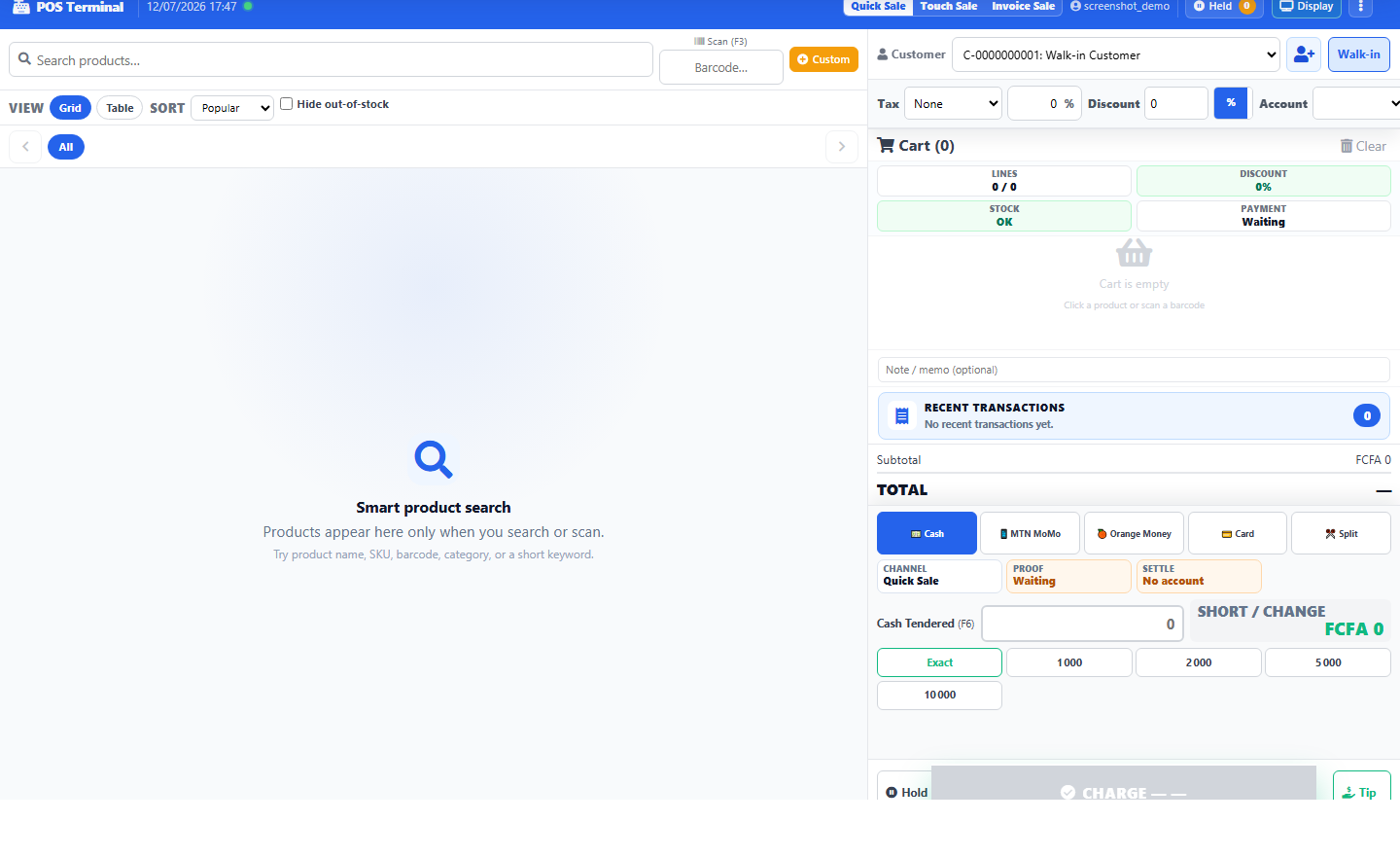
The register itself must be opened for the day (with an opening float and drawer account) before a sale can be taken — if it's closed, the terminal prompts you to open it first.
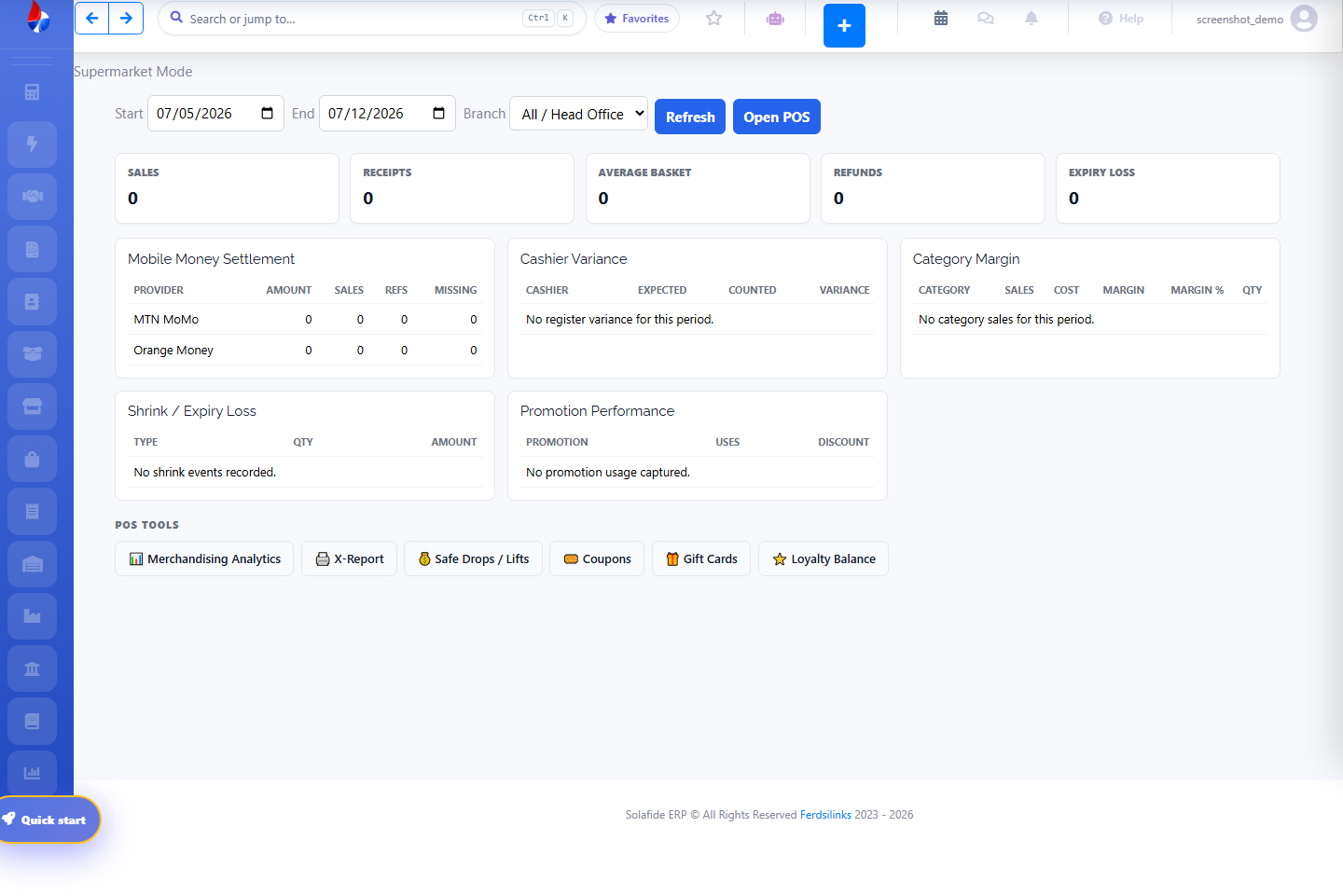
Behind the till, the Supermarket Mode dashboard gives sales/receipts/average basket/refunds/expiry-loss stats, mobile money settlement (MTN MoMo, Orange Money), cashier variance, category margin, and shrink/expiry-loss reports, plus quick links to Merchandising Analytics, X-Report, Safe Drops/Lifts, Coupons, Gift Cards, and Loyalty Balance.
Hospitality POS Overview (Restaurants & Hotels)
The hospitality POS mode adds table and room management on top of the same checkout engine: open a table or room, send the order to a kitchen display, and bill the waiter's tab when service is complete.
- Table and room/service order management
- Kitchen display for order routing
- Menu setup and waiter billing
This is a general orientation overview. Step-by-step screenshots will be added to a future manual revision.