Multi-entités et cabinets
Gestion de plusieurs sociétés et des dossiers clients d'un cabinet comptable.
Sujets dans cette section
- Adding Additional Entities
- Branches & Units
- Switching Between Entities
- Accounting Firm Mode
4 guides • 0 tutoriels vidéo disponible pour ce sujet. Parcourez le centre d'assistance ou utilisez la recherche ci-dessus.
Guides (4)
Adding & Switching Between Entities
Your subscription plan determines how many entities (companies) you can run from one account. "My Dashboard" lists every entity you administer side by side, with a New Entity card to add another when your plan allows it — open any entity from here to switch your active company.
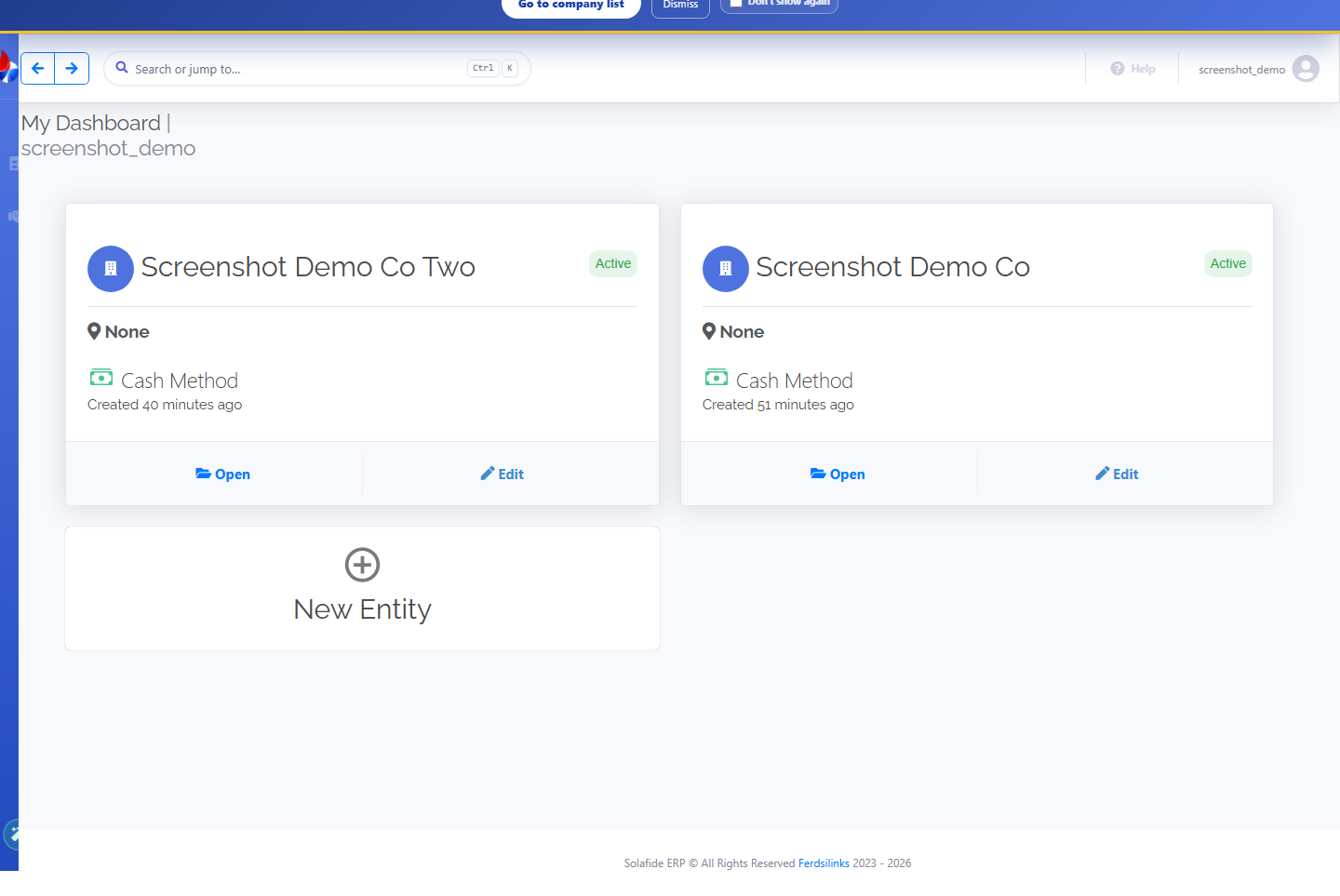
- Click Open on an entity card to switch into it.
- Click New Entity to add another company once your plan allows it.
- Each entity keeps its own ledger, customers, and settings.
- Optionally organise an entity into branches for per-location tracking.
Accounting Firm / Practice Mode Overview
Accounting firms and bookkeeping practices can manage several client entities' books under a single practice account, with firm-level plan tiers that scale by client volume.
This mode is not yet documented in the printed User Manual. If you run a practice and want to set this up, contact support for a guided walkthrough.
Organiser vos entités Screenshot
If you manage more than one company in Solafide, your personal home dashboard lists them as cards. This guide explains how to choose and save the order they appear in so the businesses you work with most are always on top.
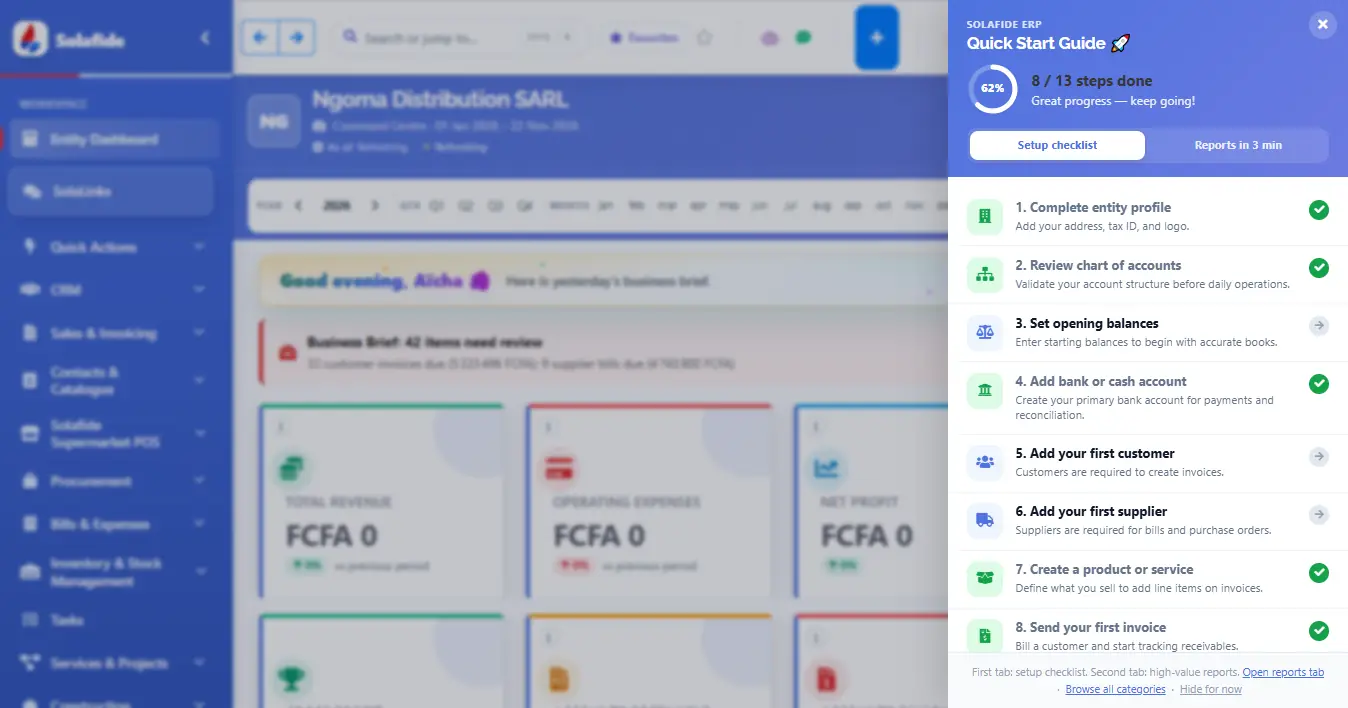
Reorder your companies
- Open your home dashboard (the landing page after you sign in).
- Your companies are shown as cards. Drag a card to move it, or use the up/down controls on each card to change its position.
- The order is saved to your account, so the next time you sign in — on any device — your companies appear in the same order.
Notes
- The order is personal to you. Changing it does not affect what your colleagues see on their own dashboards.
- New companies you create or are added to appear at the end of the list; move them wherever you prefer.
- This only changes the display order — it never changes any accounting data.
Tâches du cabinet (cabinets comptables)
Practice tasks are pieces of work for a company. A task can belong to a service project, or be a general task with no project. Solafide does not only track whether work was done. It also shows how many hours it took, who approved it, how much of it can be invoiced, and whether it has been invoiced and paid.
Where to find it
- In a company: Tasks on the sidebar. The address is
/service/<company>/tasks/. - In an accounting firm: Tasks on the firm menu, for every client book you are allowed to see. Open takes you to the task in the client company.
The dashboard
The top of the Tasks page summarises the work you can see. Every tile is a link to the matching list. Click Hide to fold the summary away so the task list starts higher on the screen; your browser remembers the choice.
| Tile | What it counts |
|---|---|
| Open | Tasks not completed or cancelled, and how many have nobody in charge |
| In progress | Work under way, plus tasks on hold or blocked |
| Awaiting review | Work sent for approval |
| Overdue | Open tasks past their due date, and those due within 7 days |
| Completed | Share of tasks completed, and how many in the last 30 days |
| Open hours | Actual hours against estimated hours on open tasks |
Team workload (click to expand) lists each person with their open, overdue and in-review tasks and the estimated hours still left. Use it to spot overloaded staff before deadlines slip.
Views and filters
The tabs above the list are ready-made views: Open, My tasks, Assigned by me, Unassigned, Overdue, Due today, Due this week, Awaiting review, Completed and All.
Managers land on Open (the full company list). Everyone else lands on My tasks. Staff only see tasks they are in charge of, contribute to, review, created, or that sit on a project they manage. Fees and billable value stay on the manager view.
Search, Status, Person and Sort by are always shown. The More filters button (sliders icon) opens Priority, Project (including “No project”), Billing (billable or internal) and a due-date range. It opens by itself when one of those is set, and shows how many are active. The list updates a moment after your last change, so choosing several filters reloads the page only once. Person and Project lists can be searched by typing. Clear filters removes them all.
Sort by: due date (default), priority, recently updated, newest first or task number.
Due dates in words. Next to each due date the list and board say Due today, Due tomorrow, In 3 days or 2 days late, so late work stands out without relying on colour. Late rows also get a red mark on the left.
Nothing found? The page says which view and how many filters are active, with Clear filters and See all tasks buttons.
List or board
- List — one row per task, with hours (actual / estimated and a bar showing how much of the estimate is used) and, for managers, Fee and payment. Managers change the person in charge by clicking the name in the In charge column. On a phone each task is a card showing its priority, status and due date; on your own tasks a Start timer button starts the clock without opening the task.
- Board — a Kanban board with the columns To do, In progress, In review, On hold / Blocked and Completed. On a computer, drag a card to another column to move it. The Open tab on the board only shows open work (completed cards stay on the Completed / All views). The review rules still apply: dropping a card on Completed only works for people allowed to approve. Dropping onto On hold / Blocked opens a small window for a note; leave it empty to put the task on hold, or write why it is blocked. Moving a card back from In review to In progress asks what must be corrected (a note is required). Cancel leaves the card where it was. On a phone or tablet, use Move to… at the bottom of a card instead of dragging. Only people who can work on a card can move it.
- Calendar — the month at a glance, each task on its due date. Use the arrows to change month and Today to come back. Late tasks are shown in red and completed ones are crossed out. When a day has more than three tasks, +N more opens that day in the list. Tasks without a due date are counted above the calendar (give them a date to place them). On a phone the calendar becomes a simple list of the days that have tasks. The view tabs (Open, My tasks, Overdue…) and the filters work on the calendar too.
Export to Excel
Export (next to List / Board / Calendar) downloads the tasks you are looking at as a CSV file that opens in Excel, with accents kept. It follows the current view tab, filters and sort, and contains the task number, name, status, priority, person in charge, reviewer, project, client, dates and hours. It contains only the tasks you are allowed to see. One export holds up to 5 000 tasks; filter further if you have more.
Change many tasks at once
On the list (computer screen), managers can tick several tasks, or tick the box in the header to select the whole page. A bar appears above the list as soon as one task is ticked. Choose Assign to, Move to, Set priority or Set due date, then Apply (Clear selection unticks everything). Every task follows the usual rules. Tasks that cannot be changed (for example, one already completed) are listed in a message, and the others are still updated. Every change is written in each task's Activity.
Create a task
Quick add. Type the task name in the Quick add bar, just under the view tabs, and press Enter. The task is created at once and you stay on the page, ready to type the next one. Add details later from the task page.
Full form. Click New task, the … button next to Quick add, or press N anywhere on the page (managers, and project managers on their own projects). A window opens:
- Task — the name (required).
- Project — optional. Leave “No project” for general work.
- In charge — the one person accountable.
- Priority — Low, Medium, High, Urgent or Critical.
- Start date, Due date, Estimated hours, Description.
- Repeat (optional) — see Recurring tasks below.
- Split the work between people (optional) — see below.
- Review, contributors and billing (optional):
- Reviewer — the person who approves the work. With no reviewer, a manager approves.
- Contributors — other people helping. They can record time and tick checklist steps, but one person stays in charge.
- Billable to the customer — on project tasks, approved time can then be invoiced.
Task numbers (TASK-001, TASK-002 …) are given automatically and never repeat within a company, even across projects. If something is wrong, the window reopens with your entries kept and the problems listed.
The task page
The task page is laid out in three areas.
Header. The task name, its number and project, and badges for status, priority, billing type and repetition. On the right:
- Start timer (see Timer).
- One main button for the natural next step: Start for a task still to do, Send to review for work in progress, Approve for the reviewer, Reopen for a closed task.
- More, with the other allowed actions (Put on hold, Mark as blocked, Return for correction, Complete without review, Cancel task), plus Edit task and Print task sheet.
Actions that need an explanation open a small window for the note. Return for correction and Mark as blocked require one; Send to review and Put on hold let you add one if you wish. On a phone the buttons share one full-width row.
Under the title, three things show you what is going on without opening a tab:
- The progress line: To do → In progress → In review → Completed. The current step is highlighted; it turns yellow when the task is on hold and red when it is blocked.
- What is happening now: one plain sentence, for example Waiting for Paul to start, Paul is working on it, Waiting for review by Marie or Nobody is in charge yet. Warnings such as Overdue by 3 days appear here, with the last update (what changed, who changed it and how long ago).
- Four summary tiles: person in charge, due date (with "In 2 days", "Due today" or "3 day(s) late"), completion % and hours worked against the estimate.
A badge Assigned to you marks the tasks that are yours.
Work (main column, just below the summary on a phone). See the tabs below.
Details (right, or below the work on a phone).
- People: person in charge (with Change to hand the task over, and an optional note), reviewer and contributors.
- Dates: the due date ("In 5 days", "Due tomorrow", "2 days late"), start and completion dates.
- Links: the project and customer, the tasks it waits for, and the repetition.
- Progress: how many checklist steps and subtasks are done, and the hours left. It turns red when the estimate is exceeded.
- Recent activity: the last four events. See full history opens the Activity tab.
- Money on this task: shown only for project tasks to people allowed to see figures. General tasks just note that time is tracked but not billed.
The work tabs. The description, then these tabs. A tab shows a count only when it has something in it (for example 2/3 subtasks done). The page opens on Subtasks if there are any, otherwise Checklist if there are steps, otherwise Comments.
| Tab | Use it to |
|---|---|
| Subtasks | Split a large task into pieces, each with its own person in charge. Add one directly at the bottom. |
| Checklist | Break the work into steps and tick them off. Completion % follows the steps and subtasks. |
| Time | Record hours worked. Managers approve or return each entry. |
| Comments | Discuss the work. The person in charge and the reviewer are notified. |
| Files | Attach deliverables or evidence (PDF, Office, images, CSV, ZIP, up to 10 MB). Only people who can see the task can download them. |
| Activity | The full history as a timeline: who created, assigned, moved, edited, recorded time or approved, and when. Handoffs opens the list of changes of person in charge. |
Edit task opens a window with all the plan fields (people, dates, estimate, billing, phase, milestone, tasks it waits for, repetition).
Workflow and approval
To do → In progress → In review → Completed
                ↘ On hold / Blocked ↗      ↖ returned for correction
- Start — the person in charge or a contributor starts the work. A task that waits for other tasks cannot start until those are completed.
- Send to review — submits the work. This does not complete it. The reviewer (or the project manager) is notified.
- Approve — the reviewer or a manager approves, and the task is completed. The person in charge cannot approve their own work; a manager must do it.
- Return for correction — sends it back to In progress. A note saying what to fix is required, and the person in charge is notified.
- Put on hold / Blocked — pause the work. Blocked needs a note explaining what is blocking it. Resume restarts it.
- Complete (managers only) closes a task directly without review. Cancel and Reopen are also for managers.
People in charge cannot close their own work. A task with open subtasks cannot be completed. Overdue is a warning shown next to the status, not a status of its own.
Timer
On the task page, click Start timer when you begin working. A banner on the Tasks page and the task page shows the running clock, so you can stop it from either place.
- Stop and record writes the elapsed time to the task's Time tab as a normal time entry. It follows the same approval and billing rules as hours typed by hand.
- Starting the timer on a task that is still To do moves it to In progress.
- You can only time one task at a time. Starting the timer on another task stops the first one and records its time.
- Less than a minute is not recorded. A timer left running for more than 24 hours is discarded: enter the real hours on the Time tab instead.
Time, cost and billing
- Each time entry has a date, an employee, the hours and what was done. The task's actual hours are the total of its entries, so there is only one source of truth.
- Staff record their own time. Managers can record time for anyone.
- On a billable project task, time goes into the project's time sheet. Once a manager approves it, the project billing run can invoice it. The rate comes from the person's project assignment, or else the service price.
- On a general task (no project), time is recorded as internal time.
- The money panel on the Overview tab is calculated, never typed in: hours recorded and waiting for approval, billable and internal hours, billable value, invoiced, paid, and approved but not yet invoiced. Amounts use the company's currency (for example FCFA).
- Approved or invoiced time cannot be deleted. Return it for review first, or cancel the invoice.
Project fee and Project billing (paid / billed / unbilled) on the list come from the linked project and its invoices. They are not a second invoice on the task.
Several people on one task
There are two ways, depending on how the work is shared:
| Situation | Use | Result |
|---|---|---|
| Each person has their own piece (Ann writes, Bob prints, Cid binds) | Split the work between people in the New task window. Click Add a piece for someone for each piece: name, person, due date. | Each line becomes a subtask with its own person in charge, due date, time sheet and approval. The main task cannot be completed until every piece is done. |
| Several people help on the same work | Contributors (under Review, contributors and billing) | One task, one person accountable; contributors can record time and tick checklist steps. |
You can also add subtasks later from the task's Subtasks tab. If one line of the split has a problem (for example a wrong date), nothing is created and the window reopens with your entries kept.
Project team and audit
When a task belongs to a project, everyone working on it (the person in charge, the reviewer, contributors and subtask owners) is added to the project team automatically. You no longer add them to the project separately. Each addition is written in the task's Activity.
The project page has an Activity tab: the audit trail of every task in the project, showing who created, assigned, moved, edited, recorded time on or approved each task, and who was added to the team.
Billing rates are not set automatically. To invoice someone's time at their own hourly rate, a manager still allocates them to the project with a rate. Otherwise the service price is used.
Recurring tasks
Much practice work comes back on a fixed calendar: the monthly VAT return, the monthly CNPS and payroll declarations, the quarterly instalments, the annual DSF. Set it up once and Solafide creates each period's task for you.
In New task (or Edit task plan), choose Repeat:
| Repeat | Example |
|---|---|
| Daily | Every working day check of the cash book |
| Weekly | Weekly bank reconciliation |
| Monthly | VAT return due on the 15th |
| Quarterly | Quarterly tax instalment |
| Yearly | Annual financial statements (DSF) |
- Every — repeat every N periods (for example every 2 weeks).
- Repeat until — optional end date. Leave it empty to repeat with no end.
- A repeating task must have a due date. Subtasks cannot repeat; make the main task repeat instead.
When is the next task created? As soon as the current one is completed (or cancelled), or on its due date at the latest, even if it is not finished. So next month's return always appears on time, and a late month stays visible as overdue. If the scheduler was stopped for a while, the missed periods are created when it restarts.
The next task copies the name, description, project, person in charge, reviewer, contributors, priority, estimated hours, billing type and the checklist (all steps unticked). The start date keeps the same gap before the due date. It gets its own task number.
Dates follow the calendar exactly: a task due on 31 January repeats on 28 February, then 31 March, then 30 April. It never slips to the 28th.
On the task page, the Overview tab shows the rule ("Repeats monthly"), the occurrence number, when the next task is due, and links to the other tasks of the series. To change or stop the repetition, edit the most recent task of the series and change Repeat (or set it to Does not repeat).
Deadline reminders
Every morning Solafide checks open tasks and reminds the right people:
| When | Who is reminded |
|---|---|
| The day before the due date | The person in charge and the contributors |
| On the due date | The person in charge and the contributors |
| The day after (overdue) | The person in charge and the contributors |
| 3 days overdue | Escalated to the reviewer and the project manager (or the company administrator if there is neither), plus the person in charge |
| Every 7 days while still overdue | The person in charge and the contributors |
- A task in review reminds the reviewer instead, because they are the ones holding it up.
- A task with nobody in charge reminds the reviewer, the project manager or the company administrator.
- Each reminder is sent once. If the due date is moved, the reminders start again for the new date.
- Reminders arrive as in-app notifications and as one email per person listing all their tasks for the day, so nobody receives a pile of separate emails. Each reminder is also written in the task's Activity.
- Completed and cancelled tasks are never reminded.
Notifications
Solafide sends an in-app notification when a task is assigned to you, when work is waiting for your review, when your task is approved or returned, and when someone comments on a task you are on. A comment reaches everyone on the task once — the person in charge, the reviewer, the contributors and the person who created it — but never the person who wrote it. Deadline reminders are described above.
Pop-ups while Solafide is open
When a new notification arrives while you are using Solafide, on a phone or a computer, a card pops up at the top of the screen with what happened (for example Task assigned to you — TASK-012 Installation). Tap it to open the task, or tap × to close it. It also closes by itself after a few seconds. If many arrive at once you get one card, 5 new notifications, that opens the full list. The bell keeps the count either way.
Alerts on your phone, even when Solafide is closed
You can also get task alerts as real phone notifications (lock screen and notification tray), like a messaging app:
- Open the bell in the top bar.
- Under the list, tap Turn on next to Get task alerts on this device.
- Allow notifications when your phone asks.
The first time a pop-up appears, Solafide may also offer Turn on / Not now. Tapping a phone alert opens the task directly. You get alerts for: a task assigned to you, work waiting for your review, a task approved or returned, a new comment, and deadline reminders.
- Each device is separate. Turn alerts on for each phone or computer you use. To stop them, open the bell and tap Turn off.
- Signing out stops alerts on that device.
- iPhone / iPad: first add Solafide to your Home Screen (in Safari tap Share, then Add to Home Screen), open it from that icon, and then turn alerts on. This needs iOS 16.4 or later.
- Android: works in Chrome, Edge, Firefox and Samsung Internet, installed or not.
- "Notifications are blocked" means you refused them earlier. Allow them again in your browser or phone settings for the Solafide site.
More → Print task sheet gives an A4 document ready to file or sign: the company name, task number and status, people, work details, description, checklist with tick boxes, handoffs and signature lines. Menus and buttons are hidden when printing. In detail it shows people, schedule, hours, billable value, checklist, handoffs and sign-off lines for the person in charge and the reviewer.
Firm staff vs task assignee
On a client book you assign firm staff (lead, bookkeeper, reviewer). That says who may work on the client. On a task you assign an active employee of that client company to do that one piece of work. Solafide matches your login to that employee by the Employee Self-Service link when it exists, otherwise by email. Assigned by me lists tasks you created.