Gestion hospitalière et clinique
Enregistrement des patients, consultations et dossiers, laboratoire et imagerie, pharmacie, hospitalisation, bloc opératoire, assureurs, portails et rapports.
Sujets dans cette section
- Getting Started
- Consultations & Billing (OPD)
- Laboratory & Imaging
- Pharmacy
- Inpatient Care
- Insurers & Claims
- Reports Center
10 guides • 0 tutoriels vidéo disponible pour ce sujet. Parcourez le centre d'assistance ou utilisez la recherche ci-dessus.
Guides (10)
Hôpital / clinique — prise en main Screenshot
The Hospital / Clinic Management add-on turns Solafide into a complete hospital information system: one patient, one record, one balance, one set of books. This first guide covers the foundation you set up on day one — patients, encounters and cashiering. Later guides cover consultations, laboratory, pharmacy, wards and billing.
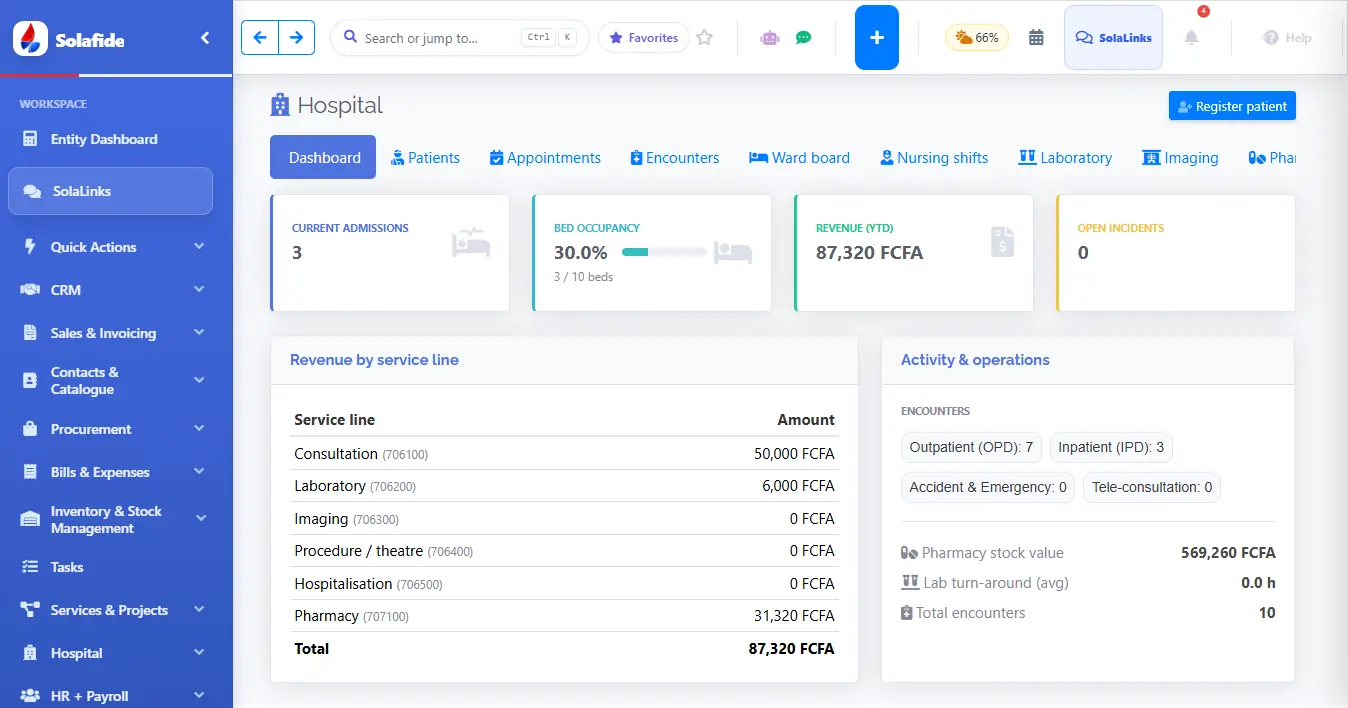
A paid add-on. Hospital / Clinic Management is activated per company from Settings → Modules. It is included on Business and higher plans and can be purchased separately on lower plans. It relies on Sales & POS, Inventory, HR and Fixed Assets, which are activated automatically with it.
1. The patient record (Master Patient Index)
Every person you care for has a single lifetime record with a unique
hospital number (for example PT2500001). When you register a patient,
Solafide automatically:
- creates the patient's medical record, and
- opens a dedicated customer account for them in your ledger, so every future charge and payment tracks against their own receivable balance.
Patient records are permanent — they are never deleted. If you find the same person registered twice, use Merge to combine the duplicate into the correct record: the history, encounters and deposits move across and the duplicate is retired.
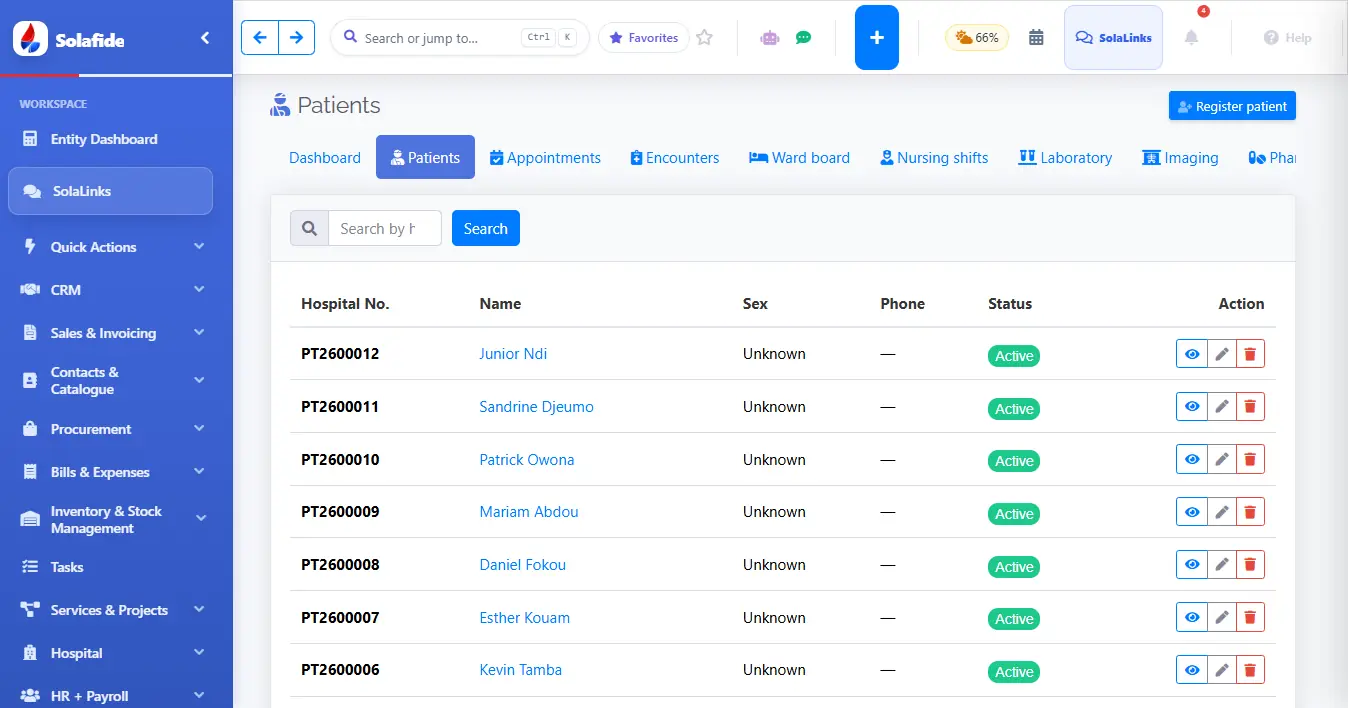
To register a patient: open Hospital → Patients → Register, fill in the name, sex and contact details, add a next-of-kin, and save. The hospital number is allocated for you.
2. Encounters (visits)
An encounter is a single visit — outpatient (OPD), inpatient (IPD), emergency (A&E) or tele-consultation. It is the anchor everything else attaches to: notes, orders, results and charges all belong to an encounter.
To start a visit: find the patient (search by hospital number, name or phone), then Open encounter. Choose the type, route it to the right department or service point, and assign the attending clinician. Close the encounter when the visit ends.
3. Cashiering — taking a deposit
At reception you can take a consultation fee or admission deposit before care is delivered. Choose the payment method (cash, mobile money, card, bank or cheque) and enter the amount.
Solafide records the deposit against the patient and posts it to your accounts automatically:
| What happens | Your books |
|---|---|
| Deposit received in cash / mobile money | Debit Cash on hand |
| Deposit received by card / bank / cheque | Debit Bank |
| Amount held for the patient | Credit Patient deposits & advances (a liability) |
The deposit is a liability until it is applied to a bill — the patient's money is held on their behalf, not yet earned as revenue. When billing applies it (covered in the billing guide), the advance is drawn down against the patient's invoice.
All amounts are shown in FCFA with space separators (e.g. 15 000 FCFA),
and every posting follows the OHADA / SYSCOHADA 2018 chart of accounts — the
same ledger the rest of Solafide uses. There is no separate hospital
accounting: your financial statements, VAT return and DSF already include this
activity.
4. What comes next
Once patients, encounters and cashiering are in place, the following areas build on this foundation:
- Consultations & EMR — clinical notes, diagnoses (ICD), and orders.
- Laboratory & Imaging — order → result → validated report, each charged.
- Pharmacy — prescriptions and dispensing on batch/expiry stock.
- Wards & admissions — beds, daily charges and discharge.
- Billing & payers — running bills, insurance claims and receipts.
Each area appears in the Hospital sidebar as your team's roles unlock it.
Consultations, dossiers et facturation (externes) Screenshot
This guide covers the outpatient (OPD) workflow: documenting a consultation, recording diagnoses and vitals, placing orders, and turning the visit's charges into a posted patient bill. It builds on the Getting Started guide (patients, encounters, cashiering).
1. The consultation note (SOAP)
Open the patient's encounter and record a clinical note in the familiar SOAP structure:
- Subjective — what the patient reports.
- Objective — examination findings and vitals.
- Assessment — your clinical impression.
- Plan — treatment, orders, follow-up.
A note starts as a draft you can edit freely. When you sign it, it becomes part of the permanent record. If you later need to correct a signed note, Solafide creates a new version (an amendment) that supersedes the original — the first version is never erased. This protects the medico-legal integrity of the record while still letting you make corrections.
2. Diagnoses, problems, allergies and vitals
- Diagnoses are recorded per encounter and can carry an ICD-10 code. Coding is optional — a small clinic can type a free-text diagnosis and adopt full coding later.
- The problem list and allergies live at the patient level and follow them across every visit. Recording an allergy is important: it powers the allergy alert when someone orders a matching drug.
- Vital signs (temperature, pulse, blood pressure, SpO₂, weight, height) are captured per encounter; BMI is calculated for you from weight and height.
3. Orders (CPOE)
Place orders for laboratory, imaging, drugs, procedures, diet, nursing or referrals from one screen. When you order, Solafide runs two safety checks and shows warnings:
- Allergy alert — the ordered drug matches a recorded patient allergy.
- Duplicate — the same item is already on an open order.
Warnings inform your decision; you remain in control. Sign an order to release it, or cancel it (with a reason) if placed in error.
4. Billing the visit
Each billable act is a service item with a price and a revenue account. As you deliver care, charges accrue to the encounter's running bill.
When you bill the encounter, Solafide gathers the pending charges into a single patient invoice and posts it to your accounts automatically:
| What happens | Your books |
|---|---|
| Amount owed by the patient | Debit the patient's receivable account (411) |
| Service revenue | Credit the matching revenue account (e.g. 706 consultations, 706 lab, 707 pharmacy) |
| VAT on any taxable item | Credit VAT on sales (4431) |
Tax follows the act. Most core medical services (consultations, hospitalisation, essential care) are commonly VAT-exempt under CEMAC/national law, while ancillary items (private-room upgrades, non-prescription goods) may be taxable. Each service item carries its own taxable/exempt setting and VAT rate — you configure it once, per country/entity, and never hardcode it.
All amounts are shown in FCFA with space separators (e.g. 10 000 FCFA), and
every posting uses your OHADA / SYSCOHADA 2018 chart of accounts. The bill
becomes an ordinary invoice in Finance, so receipts, statements, ageing and the
VAT return all include it with no extra step.
5. Sick-leave certificate
From a consultation you can issue a sick-leave (medical rest) certificate with a document number, the number of days and the period. Like other official documents, once issued it is immutable — a correction is issued as a new certificate, never an edit.
6. What comes next
The orders you place here drive the diagnostic and pharmacy workflows in the following guides — laboratory results, imaging reports, and dispensing — each of which adds its own charges to the same running bill.
Laboratoire et imagerie Screenshot
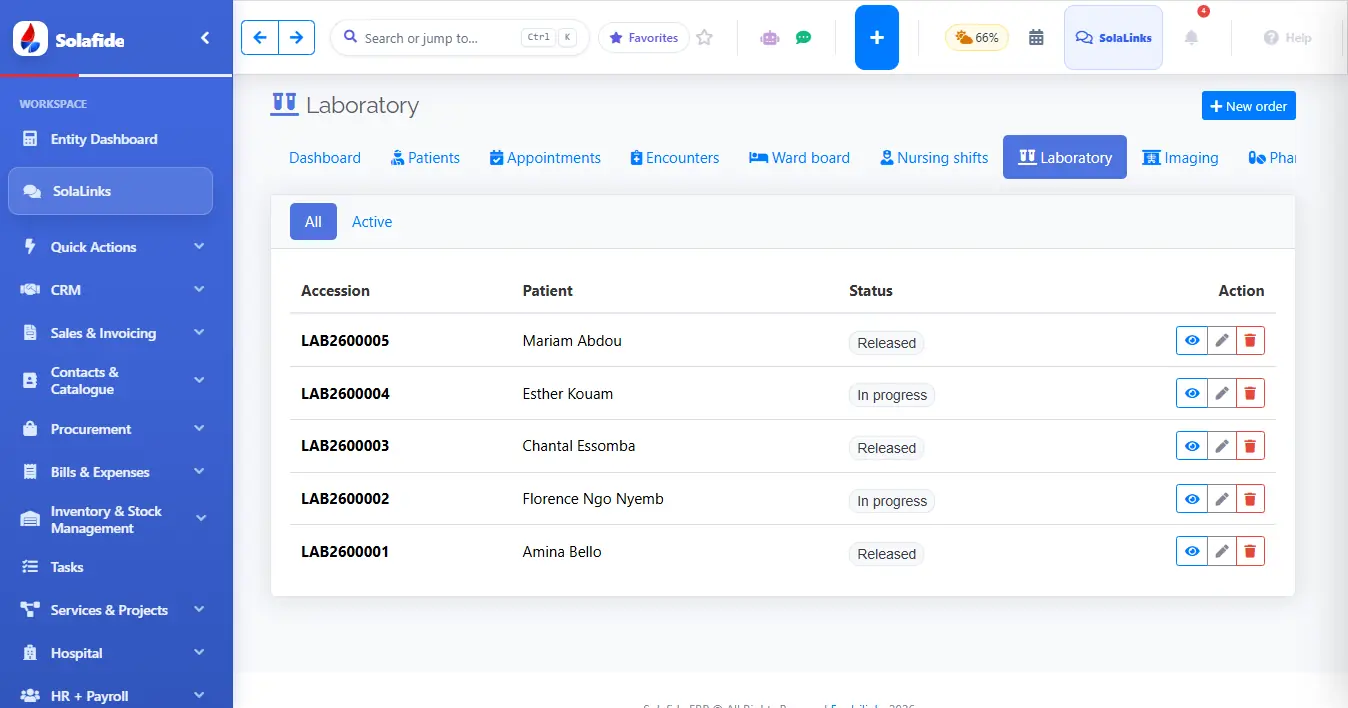
This guide covers the diagnostic workflows: the laboratory (LIS) from specimen to released result, and radiology/imaging (RIS) from scheduling to released report. Both flow from the orders placed during a consultation (CPOE) and add their charges to the patient's running bill.
1. Laboratory (LIS)
The lab follows a controlled path so a result is never released before it is checked:
- Order & accession — a lab order is opened and given a unique accession
number (e.g.
LAB2500001). - Collect the specimen — record the specimen type and who collected it; a barcode is generated for tracking.
- Enter the result — a technician enters the value. Solafide automatically flags it against the test's reference range: normal, high/low, or critical (a red alert for values needing urgent attention).
- Validate — a second qualified person (validator/pathologist) checks the result. Entry and validation are separate steps by design.
- Release — once validated, the result is released to the clinician and the patient record. A released result is locked: a correction is issued as a new version that supersedes it — the original is never overwritten.
Reference ranges & coding are optional to start: a small lab can enter free-text results immediately and add LOINC codes and numeric ranges later. Quality-control (QC) runs can be recorded per test to track analyser performance.
Billing. When a result is released, the test's charge is added to the patient's bill automatically and, when billed, posts to laboratory revenue (706).
2. Imaging / Radiology (RIS)
Radiology mirrors the lab, adapted to imaging:
- Schedule — the study is scheduled on a modality (X-ray, ultrasound,
CT, MRI) and given an accession number (e.g.
IMG2500001). - Acquire — the technologist records the acquisition, the radiation dose, and the DICOM study link (for the image viewer).
- Report — the radiologist writes the findings and impression.
- Release — the report is released to the referring clinician and the patient record. Like lab results, a released report is locked and corrected only via a superseding version.
Billing. Releasing the report adds the study's charge to the bill, posting to imaging revenue (706) when billed.
3. How it fits together
- Orders come from the consultation (CPOE): a doctor orders a test or scan, and it appears on the lab or imaging worklist.
- Every released result/report is part of the permanent medical record and is visible on the patient's chart (and, later, the patient portal — subject to consent).
- Charges accrue to the same running bill as consultations and other acts, so the patient receives one bill and your books stay in OHADA / SYSCOHADA order, in FCFA, with no separate diagnostic billing system.
Consumables used in diagnostics (reagents, film, contrast) are drawn from stock and costed in the Pharmacy & Inventory workflow.
Pharmacie et gestion des médicaments Screenshot
Part of the Solafide Hospital / Clinic Management module.
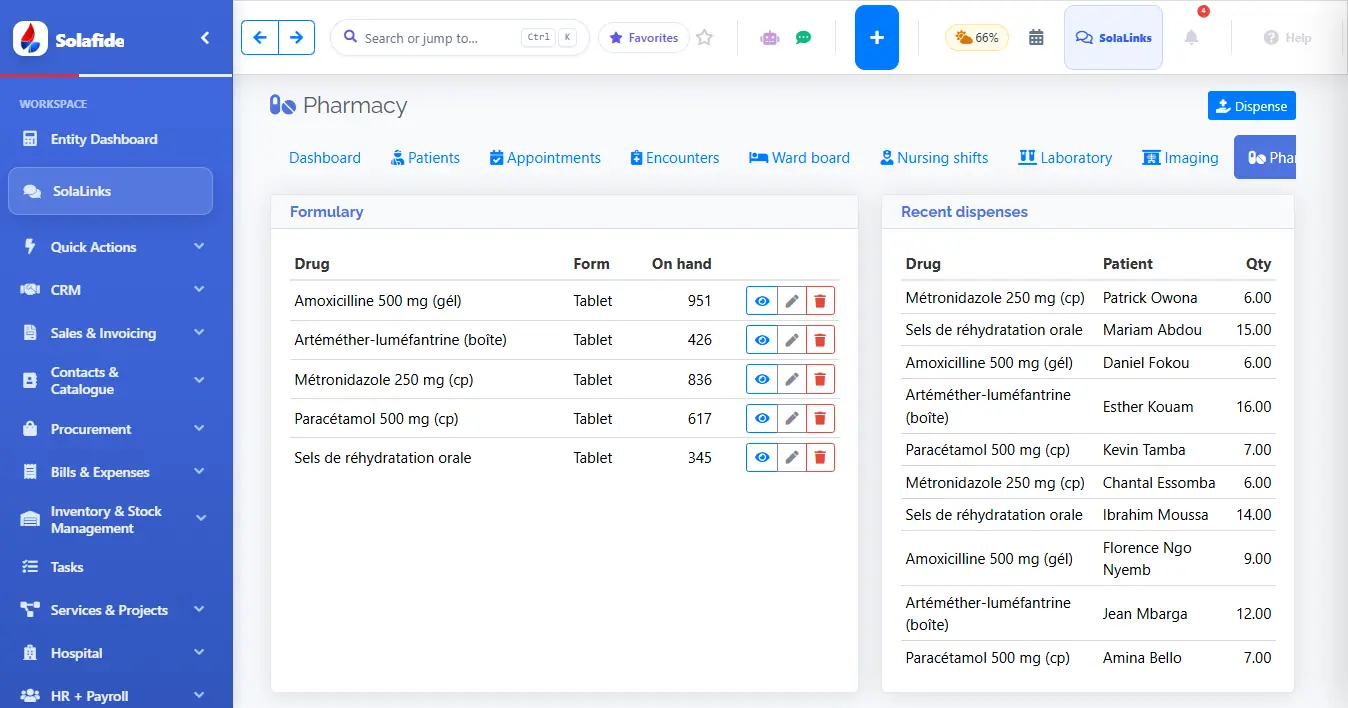
This guide explains how to run your pharmacy inside Solafide: keep a drug formulary, receive stock in expiry-dated batches, prescribe and dispense safely, keep a controlled-substance (narcotic) register, and handle returns — with every movement valued and posted to your OHADA accounts in FCFA automatically. You never need a separate pharmacy program.
1. The drug formulary
The formulary is your list of stockable drugs. Each drug records its name, generic and brand names, form (tablet, syrup, injection…), strength, ATC code, whether it needs a prescription, and — importantly — its controlled-substance schedule. Any drug with a schedule other than Not controlled is tracked in the narcotic register on every movement.
Each drug is linked to a billing line so that when it is dispensed the sale posts to your Pharmacy / Drug Sales revenue account (SYSCOHADA 707100). VAT is applied only if you mark the drug taxable — most essential medicines are VAT-exempt under CEMAC law, so this is a per-drug setting you control.
2. Receiving stock (goods-in)
Drugs arrive from suppliers in batches, each with its own batch/lot number, expiry date and unit cost. When you receive a delivery, Solafide:
- creates or tops up the batch and increases the quantity on hand;
- records a goods-receipt (GRN) with a running number; and
- posts the accounting automatically:
- Debit Pharmacy & Medical Supplies Stock (3111) — your stock asset rises;
- Credit the supplier's account (401…) — what you owe the supplier.
Because stock is held by expiry date, Solafide can always dispense the batch that expires first.
3. Prescribing
During a consultation a clinician can raise a prescription with one line per drug — dose, route (oral, IV, IM…), frequency, duration and quantity. The prescription follows the patient's encounter, so pharmacy sees exactly what was ordered.
4. Dispensing (FEFO) — and how it is charged
When you dispense a drug, Solafide automatically takes stock First-Expiry- First-Out (FEFO) — the batch nearest its expiry date is used first, and a single dispense can draw across several batches if needed. For every batch used:
- the batch quantity on hand goes down;
- the cost of the drugs leaves stock and becomes cost of sales:
- Debit Variation of Drug / Supply Stock — COGS (6031);
- Credit Pharmacy & Medical Supplies Stock (3111);
- a charge is added to the patient's bill at the selling price. When you bill the visit, that revenue posts to Pharmacy / Drug Sales (707100) against the patient's receivable account, exactly like any other hospital charge.
If there is not enough in-date stock, the dispense is refused and nothing is taken — so your stock figures always stay correct. Expired batches are never dispensed.
Solafide also checks for a recorded allergy to the drug and warns the pharmacist before dispensing.
5. The narcotic (controlled-substance) register
For any drug you flagged as controlled, every receipt, issue and return is written to an append-only narcotic register showing the quantity moved, the running balance and who witnessed it — the legal record you need for controlled drugs, kept automatically.
6. Returns
If a patient returns unused medication, record a return. You choose whether to restock it. When you restock:
- the batch quantity on hand goes back up; and
- the cost of sale is reversed:
- Debit Pharmacy & Medical Supplies Stock (3111);
- Credit Variation of Drug / Supply Stock (6031).
You can never return more than was dispensed.
7. What this means for your accounts
Every pharmacy movement is double-entry and lands in your normal OHADA / SYSCOHADA accounts in FCFA — no shadow pharmacy ledger:
| Event | Debit | Credit |
|---|---|---|
| Receive a batch | 3111 Pharmacy stock | 401 Supplier |
| Dispense (cost of drugs) | 6031 Stock variation (COGS) | 3111 Pharmacy stock |
| Dispense (sale, on billing) | 411 Patient | 707100 Pharmacy sales (+ 4431 VAT if taxable) |
| Return, restocked | 3111 Pharmacy stock | 6031 Stock variation |
Your income statement shows pharmacy sales and drug cost of sales; your balance sheet shows the value of pharmacy stock on hand — all reconciled to the batches in the pharmacy, and all produced without any extra data entry.
Related guides: “Hospital / Clinic Management — Getting Started”, “Hospital — Consultations, Records & Billing (OPD)”, and “Hospital — Laboratory & Imaging (Diagnostics)”.
Services, admissions et hospitalisation Screenshot
Part of the Solafide Hospital / Clinic Management module.
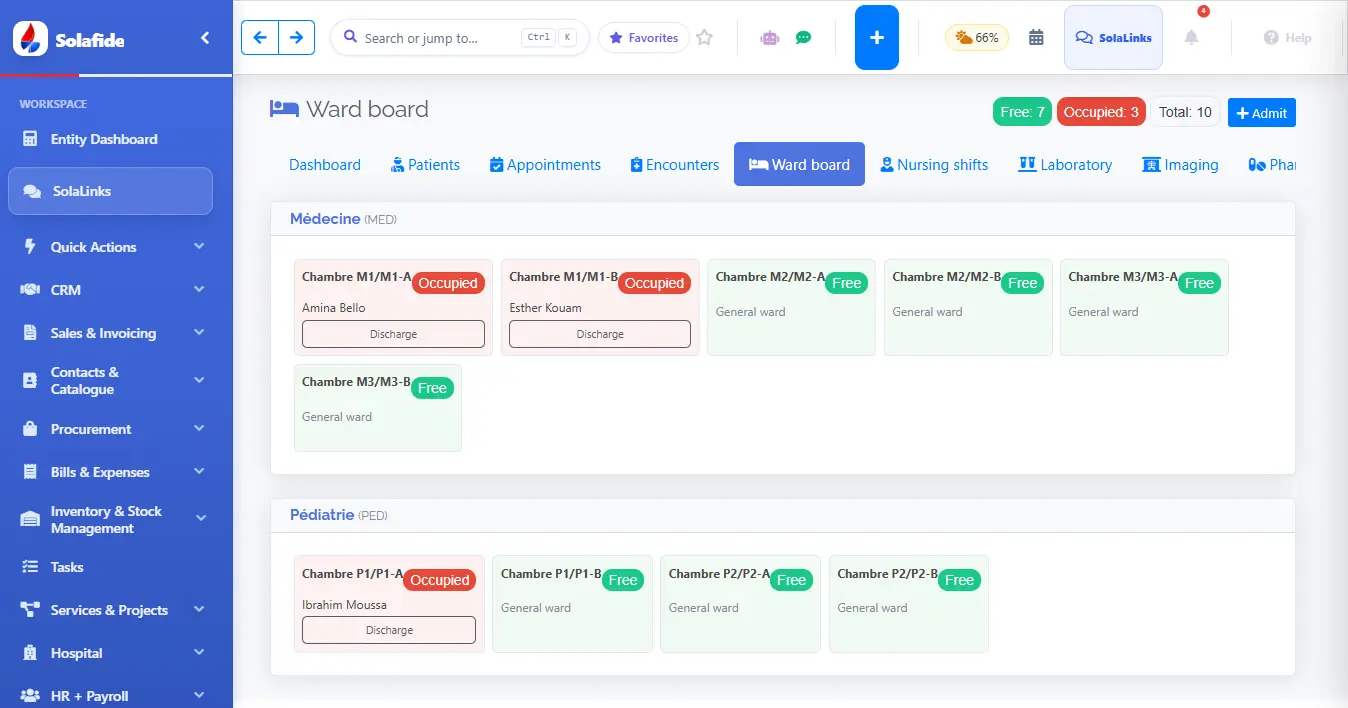
This guide covers running your wards inside Solafide: set up wards, rooms and beds; admit, transfer and discharge patients; keep nursing charts and the medication administration record (eMAR); and let daily bed charges build up on the patient's bill automatically — all posted to your OHADA accounts in FCFA. No separate ward or admissions program is needed.
1. Wards, rooms and beds
Your inpatient space is organised as Ward → Room → Bed. A room has a class (general, semi-private, private, VIP, ICU) and a daily tariff — the amount charged per day of stay. Each bed shows a live status: free, occupied, cleaning or reserved, giving you an at-a-glance occupancy board.
2. Admitting a patient
Admitting a patient links their visit (encounter) to a free bed. Solafide:
- marks the bed occupied so it cannot be double-booked;
- turns the visit into an inpatient encounter; and
- lets you take an admission deposit at the desk — recorded and posted just like any cashiering payment (Debit Cash/Bank, Credit Patient deposits / advances 4191), ready to offset the final bill.
A bed that is not free cannot be used, and a visit can only be admitted once.
3. Transfers
Moving a patient to another bed is a transfer: the record keeps the reason and time, the old bed goes to cleaning, and the new bed becomes occupied. The patient's ward is updated automatically.
4. Nursing charts and the eMAR
Nurses record observations during rounds — temperature, pulse, blood pressure, SpO₂, fluid intake/output and notes — against the admission.
For medicines, the electronic Medication Administration Record (eMAR) tracks each scheduled dose and whether it was given, omitted or refused (with a reason). When a dose is supplied from pharmacy stock, the eMAR entry links to the dispensing record, so the drug is charged and its cost relieved from stock through the normal pharmacy flow.
5. Daily bed charges (accrual)
For every calendar day of the stay, Solafide accrues one bed/day charge at the room's tariff onto the patient's running bill. Accrual is idempotent — it never double-charges a day — so you can run it as often as you like (nightly, or at discharge). Each accrued day becomes a pending charge that posts to Hospitalisation revenue (706500) when the bill is raised.
6. Discharge
Discharging a patient:
- accrues any outstanding bed days up to the discharge date;
- writes an immutable discharge summary (an official document — corrections are issued as a new record, never an edit);
- sends the bed to cleaning (mark it cleaned to make it free again); and
- closes the encounter.
You then raise the final bill in the usual way: all pending charges — bed days, medicines, consultations, tests and procedures — are gathered onto one patient invoice and posted to your OHADA accounts (Debit patient receivable, Credit the matching revenue accounts, plus VAT where it applies). The admission deposit is available to settle it.
What this means for your accounts
| Event | Debit | Credit |
|---|---|---|
| Admission deposit | Cash / Bank (57/52) | Patient deposits / advances (4191) |
| Bed day (on billing) | Patient receivable (411) | Hospitalisation revenue (706500) |
| Inpatient medicines | (see the Pharmacy guide) | 707100 + stock relief |
Everything is double-entry and produced from the ward workflow itself — no extra data entry, and your income statement and balance sheet always reflect current occupancy and unbilled inpatient revenue.
Related guides: “Hospital / Clinic Management — Getting Started”, “Hospital — Consultations, Records & Billing (OPD)”, and “Hospital — Pharmacy & Medication Management”.
Bloc opératoire, maternité, banque de sang et spécialités
Part of the Solafide Hospital / Clinic Management module.
This guide covers the specialty units: the operating theatre, maternity, the blood bank, ambulance, mortuary, sterilisation (CSSD) and infection control. Every chargeable act flows straight onto the patient's bill and into your OHADA accounts in FCFA — no separate theatre or blood-bank program is needed.
1. Operating theatre / surgery
Schedule a theatre case for a patient with the surgeon, anaesthetist, room and procedure. Complete the WHO surgical-safety checklist (sign-in, time-out, sign-out). When the case is completed, the procedure/theatre fee is added to the bill (posting to Procedure/theatre revenue, 706400).
Implants and consumables used in theatre are taken from medical-supplies stock: recording an implant relieves the batch, posts its cost (Debit Stock variation 6031 / Credit Pharmacy & medical supplies stock
3111) and charges the patient (Credit 707100), exactly like a pharmacy dispense — with the serial/lot captured for traceability.
2. Maternity
Record a delivery (mode and outcome), keep a partograph of labour observations, and capture the neonatal record (sex, birth weight, APGAR scores, resuscitation). These are clinical records; any delivery package or theatre (caesarean) fees are charged through the theatre/procedure flow above.
3. Blood bank & transfusion
Register blood units (group, component, volume, expiry) into the bank. Before issue, run a cross-match against the patient — a compatible result reserves the unit. A transfusion records the unit given to the patient, marks the unit transfused, and charges the transfusion fee (706400). Expired units, and units already transfused, are refused automatically.
4. Ambulance
Log an ambulance trip (vehicle, crew, route, distance, purpose). When the trip is linked to a patient's visit with a charge, the fee is added to the bill (706400).
5. Mortuary
Receive a body into a storage bay and later release it to the family, with any storage/service charges. Storage charges can be billed to the responsible party's account.
6. Sterilisation (CSSD) & infection control
Record each CSSD cycle (load, autoclave, biological-indicator result, who released it) for instrument traceability. Log healthcare-associated infections (organism, site, isolation) and mark them reported for surveillance. These are operational/clinical records and do not post to the ledger.
What this means for your accounts
| Event | Debit | Credit |
|---|---|---|
| Procedure / theatre fee (on billing) | Patient receivable (411) | Procedure revenue (706400) |
| Implant / consumable (revenue) | Patient receivable (411) | Goods sales (707100) |
| Implant / consumable (cost) | Stock variation (6031) | Medical supplies stock (3111) |
| Transfusion / ambulance / mortuary fee | Patient receivable (411) | Procedure revenue (706400) |
Everything is double-entry and generated from the specialty workflow itself, so your revenue by service line and your stock value stay accurate with no extra data entry.
Related guides: “Hospital — Wards, Admissions & Inpatient Care (IPD)”, “Hospital — Pharmacy & Medication Management”, and “Hospital — Consultations, Records & Billing (OPD)”.
Assureurs, tiers payants et réclamations Screenshot
Part of the Solafide Hospital / Clinic Management module.
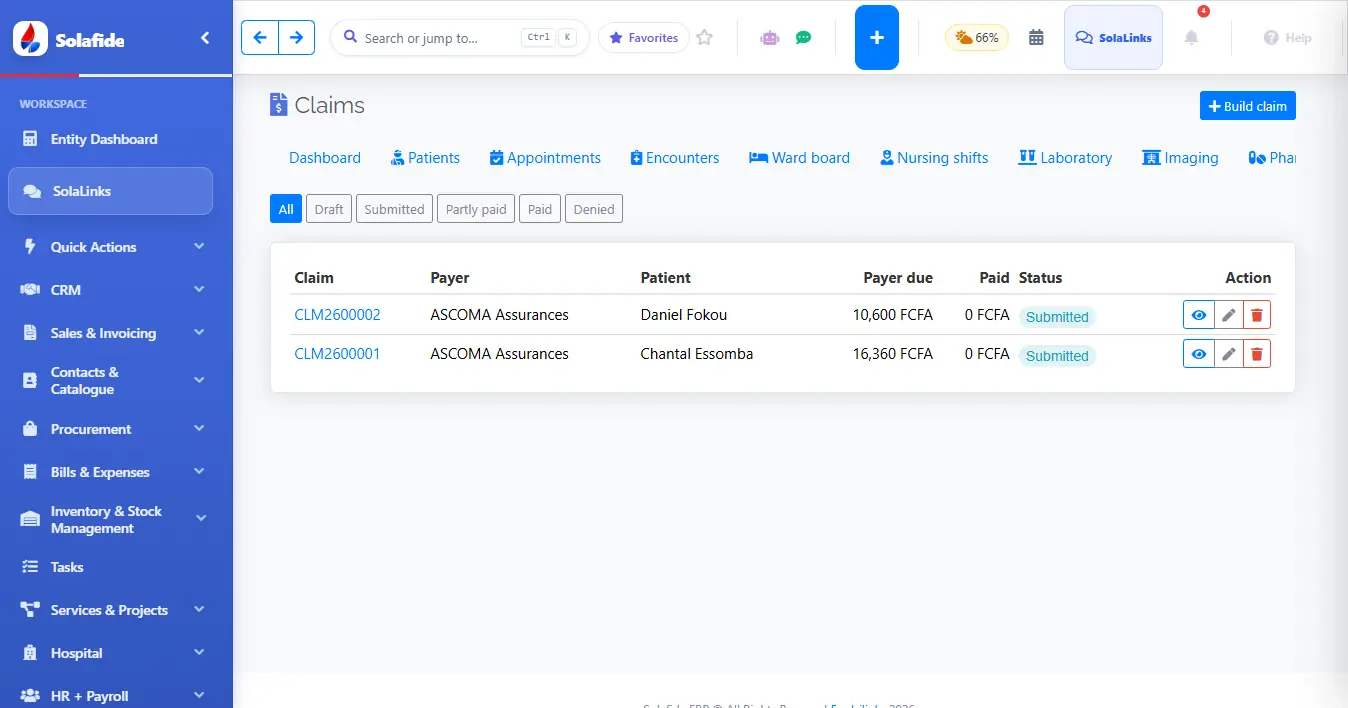
This guide explains how to bill insurers, mutuelles, corporate accounts and government/NGO schemes inside Solafide: keep payers with their own account, record patient policies and agreed tariffs, split a bill between the insurer and the patient, submit claims, and post the money you receive — all in your OHADA accounts in FCFA. No separate claims program is needed.
1. Payers and policies
A payer (insurer, mutuelle, corporate, government scheme or NGO sponsor) has its own receivable account, exactly like a patient — so at any time you can see what each insurer owes you. A patient's policy records their payer, the co-pay percentage they must pay themselves, and an optional coverage ceiling (the most the payer will cover).
2. Agreed tariffs
Insurers often pay an agreed price that differs from your list price. Record a payer tariff per service, and Solafide uses it when building the claim. The difference between your list price and the agreed price is the contractual allowance — money you agree to forgo — recognised automatically.
3. Authorisations
Where a payer requires pre-approval, record an authorisation for the visit (requested → approved/denied) with its code and approved amount.
4. Splitting the bill (claims)
Once a visit is billed, build a claim for the payer. For every charge, Solafide works out:
- the allowed amount (the agreed tariff, or your price if none is set);
- the contractual allowance (list price − allowed), written down;
- the payer's share (allowed, less the patient's co-pay), capped at the policy ceiling; and
- the patient's share (co-pay + anything above the ceiling).
Submitting the claim moves the payer's share onto the payer's account and writes down the contractual allowance, leaving only the co-pay on the patient's account:
- Debit Payer receivable (411-payer) / Credit Patient receivable (411-patient) — the insurer now owes this part;
- Debit Contractual allowance (7069, a reduction of revenue) / Credit Patient receivable — the agreed write-down.
5. Remittances (getting paid)
When the payer pays, record a remittance: Debit Bank/Cash / Credit Payer receivable — clearing what the insurer owed. If the payer denies part of the claim, that amount is returned to the patient's account (Debit Patient receivable / Credit Payer receivable), so nothing is lost — it simply becomes the patient's responsibility. Claims move to partly paid, paid or denied automatically as money and denials come in.
What this means for your accounts
| Event | Debit | Credit |
|---|---|---|
| Payer assumes its share | Payer receivable (411-payer) | Patient receivable (411-patient) |
| Contractual allowance | Contractual discount (7069) | Patient receivable (411-patient) |
| Payer payment received | Bank / Cash (52/57) | Payer receivable (411-payer) |
| Payer denial (to patient) | Patient receivable (411-patient) | Payer receivable (411-payer) |
Your revenue is recognised at the agreed price (list price less the contractual allowance), your receivables are split cleanly between patients and each insurer, and payer ageing is always up to date — with no double entry by hand.
Related guides: “Hospital / Clinic Management — Getting Started”, “Hospital — Consultations, Records & Billing (OPD)”, and “Hospital — Wards, Admissions & Inpatient Care (IPD)”.
Portails patient, référent et payeur, télémédecine
Part of the Solafide Hospital / Clinic Management module.
This guide covers the private portals for people outside your staff — patients, referring doctors and insurers — plus telemedicine and standards-based data exchange (HL7 FHIR). Each portal is strictly private: a portal user only ever sees their own records.
1. Private portals, safely
Solafide gives three kinds of outside users their own secure area:
- Patient portal — a patient sees only their own appointments, results, prescriptions, bills and messages.
- Referring-clinician portal — an external doctor sees only the patients they attend/refer, and receives their results and discharge summaries.
- Payer / insurer portal — an insurer sees only their own claims and authorisations.
Access is enforced on every request: if someone tries to reach another person's record, a different insurer's claims, or another hospital's data, they are refused. This is the same protection used by the student and teacher portals.
2. Invitations (how people get in)
You invite a person from their record. Solafide issues a one-time, expiring link. When they accept it, their portal account is activated. Patients must give explicit consent before their portal account is switched on — there is no open self-sign-up, so nobody can guess their way into a record.
An invitation that has expired, been used, or been revoked cannot be accepted.
3. Secure messaging
The clinic and the patient can exchange secure messages (for example, "your results are ready"). Messages are tied to the patient's record and marked read when opened.
4. Telemedicine
A tele-consultation is a visit like any other — it just happens remotely. It flows through the same notes, diagnoses, e-prescriptions and billing as an in-person visit, so a remote consultation is documented and charged exactly the same way.
5. Standards-based data exchange (HL7 FHIR)
Solafide can export clinical records as HL7 FHIR R4 resources — the international standard for health-data exchange — so you can share data with national health systems or connected apps without a separate integration tool:
- Patient, Encounter, Condition (diagnoses, ICD-10-coded), Observation (lab results, LOINC-coded) and MedicationRequest (prescriptions, ATC-coded).
Because your records already carry standard codes (ICD, LOINC, ATC), the exported data is standards-compliant with no extra work.
What this means for you
- Patients, doctors and insurers serve themselves, safely — less phone traffic and front-desk load.
- Every access is scoped and audited; consent is captured for patients.
- Your data can travel to other systems in a recognised format when you choose to share it — you are never locked in.
Related guides: “Hospital / Clinic Management — Getting Started”, “Hospital — Consultations, Records & Billing (OPD)”, and “Hospital — Insurers, Payers & Claims”.
Qualité, gouvernance et tableaux de bord
Part of the Solafide Hospital / Clinic Management module.
This guide covers clinical governance and management insight: incident reporting, mortality reviews, clinical audits, statutory disease notification, the audit trail, biomedical-equipment upkeep, and the management dashboard that pulls it all together — census, occupancy and revenue by service line — in FCFA.
1. Incidents & adverse events
Record any patient-safety incident (medication error, fall, equipment, procedure, infection, security) with its severity — from a near-miss up to a sentinel event. Add the root-cause analysis and corrective actions, and track the incident from open → investigating → closed.
2. Mortality & morbidity review
Record an M&M review of a death: cause, findings, the reviewing committee, and whether it was judged preventable — the record your quality committee needs.
3. Clinical audits
Run a clinical audit against a set of criteria (e.g. hand hygiene, prescribing standards). Enter the sample size and how many met the standard, and Solafide computes the compliance percentage for you.
4. Statutory disease notification
Report a notifiable disease to the health authority: disease (with its ICD code), onset, and the authority reference — kept as your compliance record and ready for line-list export.
5. The audit trail
Sensitive actions are written to an append-only audit log — who did what, when and from where. Like all official records in Solafide, these entries cannot be edited or deleted, so your audit trail is trustworthy.
On every detail page
You do not have to open a separate report to see this history. Every detail page — a patient, an encounter, a lab order, an insurance claim — now shows its own Audit trail panel at the bottom: a clear timeline of everything that happened to that record (registered, note added and signed, diagnosis, charge, billed, sample collected, result validated and released, dispensed, admitted, discharged, claim built, submitted and paid, authorisation approved or denied…), each line showing the staff member who did it, the time, and the device address.
Because every hospital screen is already restricted by role, the person shown is by definition someone authorised for that step — so the trail doubles as proof that approvals (signing a note, validating a result, posting a bill, approving an authorisation) were done by the right people, in the right order.
6. Biomedical equipment
Schedule preventive maintenance, calibration and repairs for your equipment, link them to your Fixed-Assets register, and see what is overdue at a glance. Completing a job records its date, cost and notes.
7. The management dashboard
A single dashboard combines your clinical and financial data into the numbers managers watch:
- Census & activity — encounters (outpatient, inpatient, emergency, tele) and current admissions;
- Bed occupancy — occupied vs. total beds, as a percentage;
- Revenue by service line — consultation, laboratory, imaging, procedures, hospitalisation and pharmacy, read straight from your posted accounts;
- Payer mix — how much each insurer owes;
- Lab turn-around time, pharmacy stock value, and open incidents.
Because the figures come from the ledger and the clinical records themselves, they are always current and reconciled — no separate reporting spreadsheet.
Related guides: “Hospital / Clinic Management — Getting Started”, “Hospital — Insurers, Payers & Claims”, and “Hospital — Wards, Admissions & Inpatient Care (IPD)”.
Centre de rapports hospitaliers Screenshot
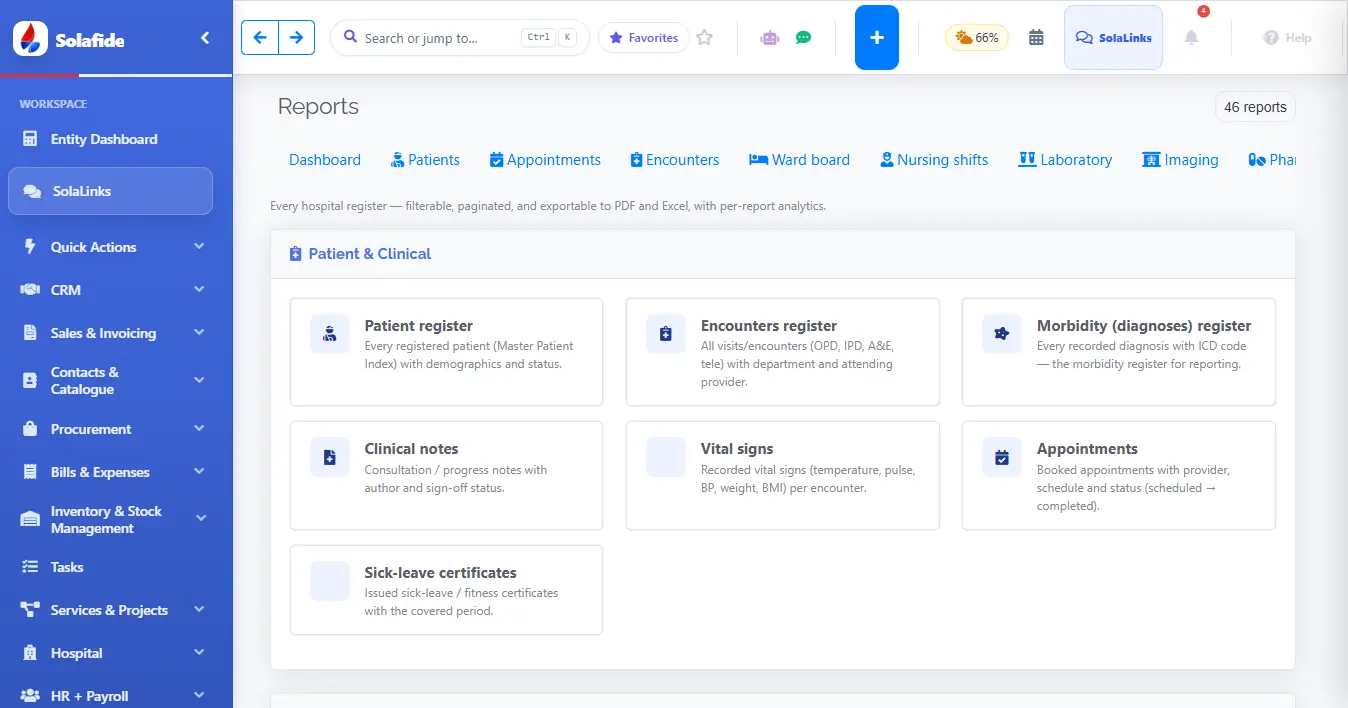
The Reports area (Hospital → Reports) is your one-stop register for everything that happens in the hospital. Every clinical, diagnostic, pharmacy, inpatient, theatre, revenue-cycle and governance record has a report you can filter, page through, analyse and export to PDF or Excel — all figures in FCFA, straight from your OHADA accounts.
Finding a report
Open Reports from the hospital menu. Reports are grouped into categories:
- Patient & Clinical — patient register, encounters, diagnoses (morbidity), clinical notes, vital signs, sick-leave certificates.
- Diagnostics — laboratory orders & results, imaging orders & reports.
- Pharmacy — drug formulary, stock & expiry (FEFO), dispensing register, stock receipts, the narcotic/controlled-drug register, and medication returns.
- Inpatient — admissions, bed transfers, bed-charge accruals, discharges and the live bed-state register.
- Theatre & Specialties — theatre/surgery cases, implant usage, maternity deliveries, blood-bank inventory, transfusions, ambulance trips, the mortuary register, CSSD sterilisation cycles and infection control.
- Revenue Cycle — bills/invoices, service charges, cashiering deposits, payers, insurance policies, authorisations, claims and remittances.
- Governance & Quality — incident register, mortality reviews, clinical audits, notifiable diseases, biomedical-equipment maintenance and the append-only audit trail.
Click any card to open the report. You only see the reports your role is allowed to access.
Filtering
Each report shows only the filters that make sense for it:
- Date range — restrict to a period (e.g. this month's admissions).
- Status — e.g. only paid claims, only occupied beds.
- Type — e.g. encounter type, dispensing patient class, incident type.
- Search — free-text across the key fields (numbers, names, codes).
Press Apply to filter, Reset to clear.
Analytics & totals
At the top of every report you get a records count and money totals (for example, total patient-due on bills, total COGS on dispensing). Where it is useful, a small breakdown panel shows the split by a key dimension — encounters by type, claims by status, dispensing by drug, admissions by ward — so you get an at-a-glance picture without leaving the page.
For the full management dashboard (census, occupancy, revenue by service line and payer mix) use Analytics in the hospital menu.
Exporting to PDF and Excel
Use the Excel and PDF buttons (top-right of any report). The export always uses your current filters, so what you export is exactly what you see. Excel is ideal for further analysis; PDF is ready to print or share with management, auditors or payers.
Opening a record
Where a record has its own detail screen — a patient, an encounter, a lab order, a claim — the report gives you an Open button on the row to jump straight to it and take action.
Tip: reports are read-only. Nothing you do here changes a record or posts to the ledger; they simply present the data already captured elsewhere in the hospital.