Rentals
Equipment and space hire: bookings, check-out and return, invoicing, and the rentals report suite.
Topics in this section
- Rental Items & Bookings
- Check-out & Return
- Invoicing Rentals
- Rentals Reports
2 guides • 0 video tutorials available for this topic. Browse the Support Center or use search above.
Guides (2)
Rentals — Equipment & Space Hire Screenshot Rentals is for businesses that hire things out and get them back: chairs, tables, tents, sound systems, generators, vehicles, a hall, a room. Unlike stock, a rented item is never sold — so renting it does not reduce…
Rentals is for businesses that hire things out and get them back: chairs, tables, tents, sound systems, generators, vehicles, a hall, a room. Unlike stock, a rented item is never sold — so renting it does not reduce your inventory. It is occupied for a period, then it comes back.
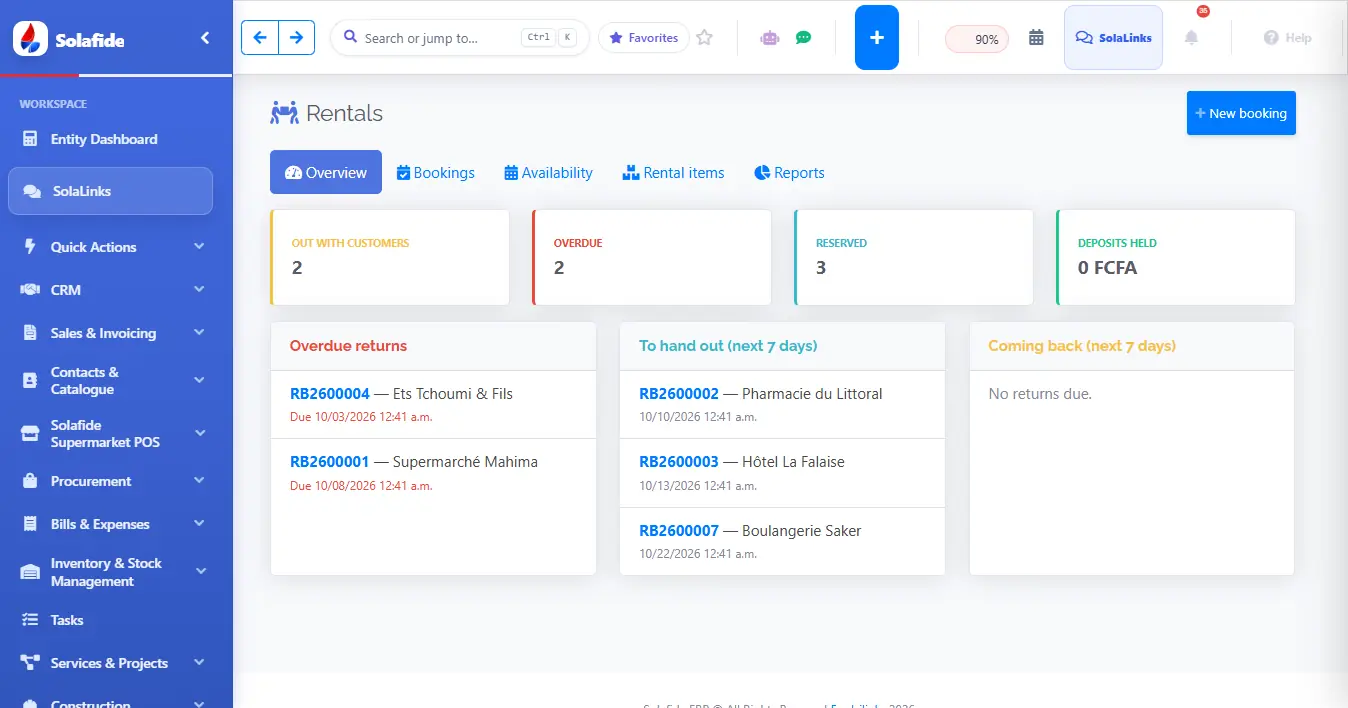
Rentals is a paid add-on. Once it is active for your company, Rentals appears in the sidebar with four areas: Overview, Bookings, Availability and Rental items.
1. Set up what you hire out
Go to Rentals → Rental items → Add rental item.
| Field | What to enter |
|---|---|
| Code / Name | e.g. CHAIR — Plastic chair |
| Type | Pool of identical items (300 chairs, 20 tents), Single item (the generator) or Space / venue (the hall) |
| Quantity owned | How many you have. Always 1 for a single item or a space |
| Rates | Fill the ones you use: per hour, day, week or month (in FCFA) |
| Deposit per unit | The refundable caution you ask for each unit (e.g. 50 FCFA per chair) |
| Replacement cost | Charged automatically for each unit that does not come back |
| Subject to VAT | Tick and give the rate if your rentals carry VAT |
| Fixed asset | Optional: link to the item in your fixed-asset register so it keeps depreciating |
| Revenue account | Leave blank to use 7073 Hiring and rental revenues |
2. Take a booking
Rentals → Bookings → New booking: choose the customer, the period (from / until), how it is charged (per day, per hour…) and the place of use.
Then add the items: Plastic chair × 100, Main hall × 1. Solafide prices each line (any started period counts — a 26-hour day hire is 2 days) and computes the deposit to ask.
Press Reserve. Solafide checks the calendar: if the hall is already booked, or only 200 of your 300 chairs are free for those dates, the reservation is refused with a clear message. Items stay held until the booking is cancelled or they come back.
Availability shows how many units of each item are free for any period, plus a 14-day strip (green = all free, amber = partly booked, red = none free).
3. Deposit (caution)
On the booking page, Record deposit received (cash, Mobile Money, bank or card). The deposit is not income: it is held as a debt to the customer until you refund it or use it to pay their invoice.
4. Hand out and receive back
- Hand out: confirm how many units actually leave (you can hand out fewer than booked).
- Receive back: enter, per item, how many came back, how many did not, how many
are damaged and the damage charge. Solafide then adds automatically:
- a late-return charge when items come back more than one hour after the booked end (extra periods at the booking's rate);
- a loss charge at the replacement cost for each missing unit — and removes those units from your pool so they can no longer be booked;
- the damage charge you entered.
Items out past their end date show as Overdue and keep blocking the calendar until they are returned.
5. Invoice, settle, close
- Invoice creates a normal customer invoice for everything not yet invoiced (the rent, and later the extras). You can invoice as soon as the booking is reserved — for payment in advance — and again after the return for the extras.
- Use deposit to pay settles an invoice from the deposit held.
- Refund deposit gives back what is left.
- Close booking once everything is invoiced and the deposit is refunded or used.
The customer pays the invoice like any other (Receive payment on the invoice).
6. Changing or deleting — everything is open until it is invoiced
| What | How | Locked when |
|---|---|---|
| Customer, place of use, notes | Edit details (top of the booking) | Customer: once a deposit or invoice exists |
| Dates / charged per | Change period (Items card) — also while the items are out, to extend the return date | The rent is invoiced |
| Quantity of an item | Pencil on the item line | The items are handed out, or the line is invoiced |
| Rate of an item | Pencil on the item line | That line is invoiced |
| Remove an item | ✕ on the item line | Handed out or invoiced |
| Extra charge | Pencil / bin on the charge | That charge is invoiced |
| Whole booking | Delete | A deposit or invoice exists — use Cancel booking instead |
| Rental item | Delete rental item on its page | It has bookings — untick Active instead |
Once something is invoiced, correct it with a credit note on the invoice.
Worked example
A wedding hires 100 chairs (150 FCFA/day, deposit 50 each) and the hall (100 000 FCFA/day) for 2 days.
| Step | Amount |
|---|---|
| Rent: 100 × 150 × 2 + 100 000 × 2 | 230 000 FCFA |
| Deposit asked: 100 × 50 | 5 000 FCFA |
| Returned 1 day late, 3 chairs missing, 2 damaged (1 000 FCFA) | late 115 000 · loss 9 000 · damage 1 000 |
| Invoice | 355 000 FCFA |
| Deposit applied | − 5 000 FCFA → 350 000 FCFA due |
What happens in your accounts (SYSCOHADA)
| Event | Entry |
|---|---|
| Deposit received | Dr 57 Cash / 552 Mobile Money / 52 Bank — Cr 1652 Cautions reçues |
| Rent & late charges invoiced | Dr 411 Customer — Cr 7073 Locations (+ 4431 VAT if taxable) |
| Damage / loss charged | Dr 411 Customer — Cr 7588 Other sundry revenues |
| Deposit used to pay the invoice | Dr 1652 — Cr 411 Customer |
| Deposit refunded | Dr 1652 — Cr 57 / 552 / 52 |
Rented items are never taken out of stock. If you linked an item to the fixed-asset register, it continues to depreciate normally while it is rented.
Who can do what
| Area | Roles |
|---|---|
| Rental items & prices | Admin, Assistant admin, Manager, Inventory manager |
| Bookings & availability | + Accountant, Cashier, Sales rep |
| Hand out / receive back | Admin, Assistant admin, Manager, Cashier, Sales rep, Inventory manager |
| Deposits | Admin, Assistant admin, Accountant, Manager, Cashier |
| Invoicing & extra charges | Admin, Assistant admin, Accountant, Manager, Cashier, Sales rep |
Long-term rent (offices, shops)
For a space rented every month, use Sales → Recurring invoices with a rental service item: Solafide issues the invoice automatically each month.
Rentals Reports Screenshot Every rentals report is built from your three lists:
Every rentals report is built from your three lists:
- Inventory — what you own (Hall A, Room 3, 400 plastic chairs, 20 tables).
- Bookings — who took what, how many, from when to when, and at what price.
- Status — where each item stands right now (available, booked, out with a customer, being cleaned, damaged).
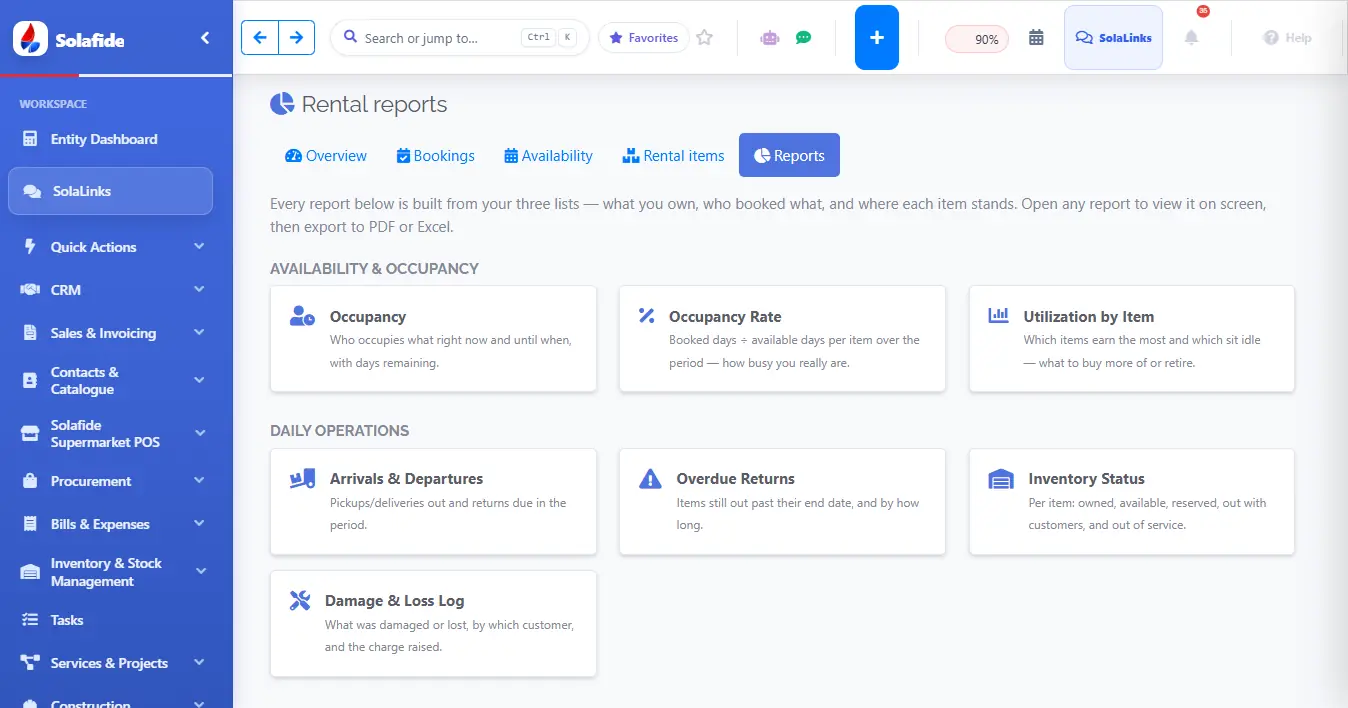
Open Rentals → Reports to see them all, or reach any one from Reports → Rentals Reports. Every report shows on screen and can be exported to PDF or Excel using the buttons at the top right. Reports that cover a period have a From / To date filter — pick the dates and choose Apply.
Availability & occupancy
- Occupancy — who occupies what right now and until when, with the days remaining. Sort by Days left to see who returns next.
- Occupancy Rate — booked days ÷ available days per item over the chosen period. Shows how busy you really are.
- Utilization by Item — which items earn the most and which sit idle, so you know what to buy more of or retire.
The interactive Availability Calendar (a grid of items × dates showing free / booked / blocked) is also linked from the reports category.
Daily operations
- Arrivals & Departures — what goes out (pickups/deliveries) and what is due back in the period.
- Overdue Returns — items still out past their end date, and by how many days.
- Inventory Status — per item: owned, available, reserved, out with customers, and damaged/lost.
- Damage & Loss Log — what was damaged or lost, by which customer, and the charge raised.
Money
- Revenue — rental revenue by item, by customer, and by month.
- Payments & Balances Due — per booking: invoiced, paid, and the balance still owed.
- Security Deposits Held — deposits (cautions) received, refunded, applied, and still held, to refund or settle after inspection.
- Arrears — bookings behind on payment, how much they owe, and for how long (worst first).
- Rent Roll — long-term monthly hires: the tenant, item or space, monthly rent, and lease dates.
Planning
- Upcoming Bookings & Forecast — confirmed and pending bookings ahead, with expected income.
- Lease Expiry — long-term hires ending soon, so you can renew or re-rent.
- Cancellations — cancelled bookings in the period and the value lost.
- Customer History — per customer: number of bookings, revenue, late returns, and damage — spot your best (and most troublesome) clients.
How availability is worked out
A booking only blocks availability while it is On hold (Reserved) or Out (Checked out). For a period you ask about:
- Rooms and spaces (one unit): free when no active booking overlaps your dates.
- Quantity items (chairs, tables): Available = Total owned − out of service − quantities in overlapping bookings. For example, with 400 chairs and 10 broken, if bookings of 150 and 120 overlap your date, 400 − 10 − 270 = 120 are free.
All amounts are shown in your entity's currency (FCFA by default).